
An SRT file (SubRip Text) is a plain-text subtitle file that stores captions with timestamps for video or audio content. It's the most widely supported subtitle format — compatible with YouTube, Vimeo, TikTok, VLC, Premiere Pro, and virtually every video platform and editor. If you work with video in any capacity, understanding SRT files will save you time and help your content reach more viewers.
In this guide, you'll learn exactly how SRT files are structured, how to create them (manually or automatically), where to use them, and why they're critical for accessibility and video SEO.
What Is an SRT File?
SRT stands for SubRip Text, named after the SubRip software originally used to extract subtitles from DVDs. An SRT file is a simple text document — you can open it in Notepad, TextEdit, or any code editor — that contains numbered subtitle blocks with start/end timestamps and the corresponding text.
Unlike burned-in captions that are permanently embedded in a video's pixels, SRT files are separate companion files. This means you can edit, translate, or swap subtitle files without re-rendering your video. That flexibility is a major reason SRT became the industry standard.
Here's what a typical SRT file looks like:
1
00:00:01,000 --> 00:00:04,500
Welcome to this tutorial on transcription.

2
00:00:05,000 --> 00:00:09,200
Today we'll cover how to generate subtitles
for any video automatically.

3
00:00:10,000 --> 00:00:14,800
Let's get started with the basics.
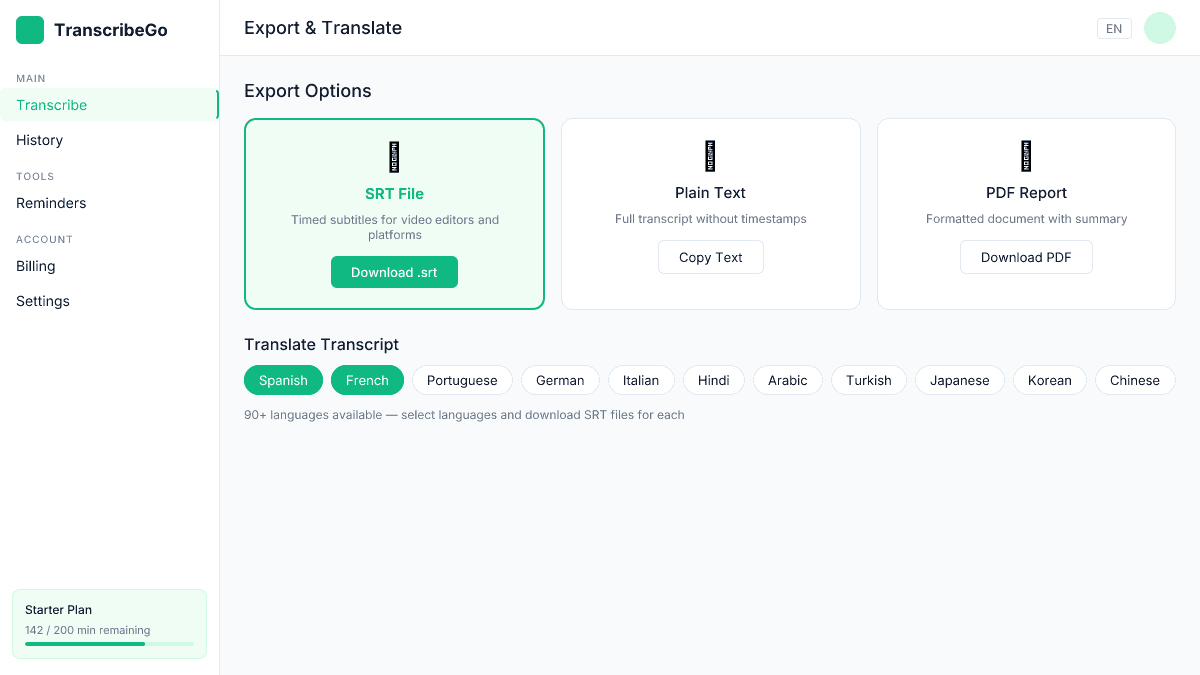
Each block has four parts: a sequence number (starting at 1), a timestamp line (start --> end in HH:MM:SS,mmm format), the subtitle text (one or two lines, ideally under 42 characters per line), and a blank line separating it from the next block.
Why SRT Files Matter: SEO and Accessibility
Adding subtitles isn't just about helping deaf or hard-of-hearing viewers — though that's important. The data makes a compelling case for every content creator:
Engagement: Videos with subtitles see a 12–13% boost in view counts within two weeks, and 80% of viewers are more likely to watch a video to the end when captions are available (Verizon/Publicis Media study).
Reach: 70% of Americans now watch content with subtitles enabled. Among 18–25 year olds, that number climbs to 80% (Kapwing subtitle statistics).
SEO: When you upload an SRT file to YouTube or embed captions on your website, search engines can index the text. This makes your video discoverable for keywords spoken in the content — something that's impossible with audio alone. Research shows subtitled videos can see up to a 7% increase in organic traffic.
Accessibility compliance: Digital accessibility lawsuits have been rising steadily, with over 4,100 filed in 2024 alone. Adding captions via SRT files is one of the simplest ways to meet WCAG 2.1 guidelines.
How to Create an SRT File
There are three main approaches, depending on your time and budget.
Method 1: Create Manually in a Text Editor
Open any plain-text editor (Notepad on Windows, TextEdit in plain text mode on Mac, VS Code, etc.) and follow the SRT format:
- Type the sequence number (start at 1)
- Add the timestamp line:
00:00:01,000 --> 00:00:04,500 - Write the subtitle text (max two lines, ~42 characters each)
- Leave a blank line before the next block
- Save with the
.srtextension and UTF-8 encoding
This works for short videos but becomes tedious for anything over a few minutes. A 10-minute video typically has 80–120 subtitle blocks.
Method 2: Use a Subtitle Editor
Tools like Subtitle Edit (free, open source) or Aegisub give you a timeline-based interface where you can sync text to video playback. This is faster than a raw text editor but still requires you to type every word manually.
Method 3: Generate Automatically with AI (Recommended)
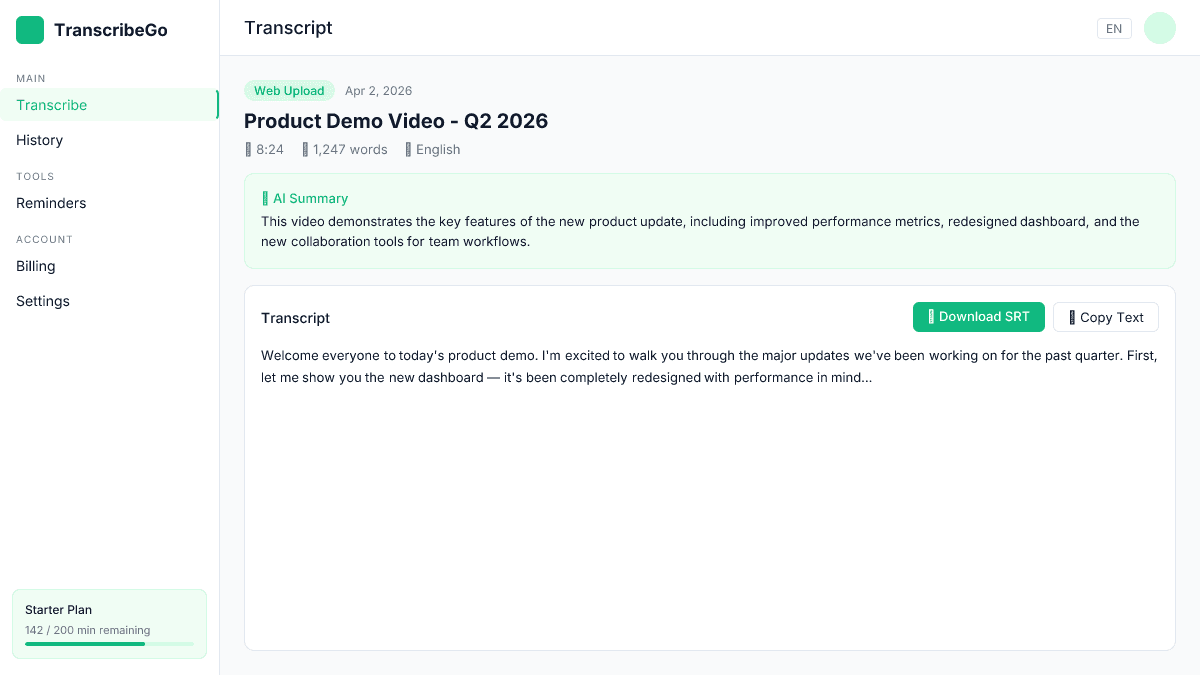
The fastest approach is to use an AI transcription tool that outputs SRT files directly. Upload your video, let the AI transcribe and timestamp it, then download the .srt file — the entire process takes seconds to minutes instead of hours.
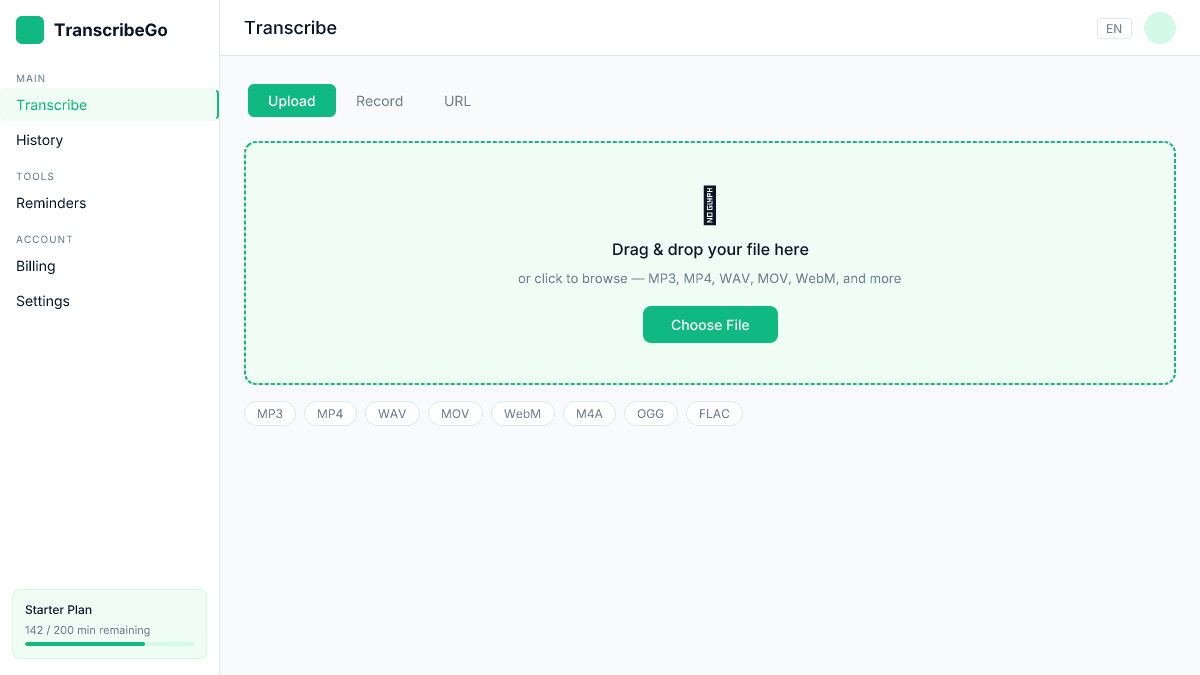
With TranscribeGo, you can upload a video file, paste a URL (YouTube, TikTok, Vimeo), or even record directly — and download a perfectly formatted SRT file with one click. The AI engine handles speaker detection, punctuation, and timestamp alignment automatically.
How to Use SRT Files on Major Platforms
Once you have your SRT file, here's how to use it on the platforms that matter most.
YouTube
Go to YouTube Studio → select your video → Subtitles → Add language → Upload file → select "With timing" → upload your .srt file. YouTube will parse the timestamps and display the captions. This is far more accurate than relying on YouTube's auto-generated captions, which frequently misspell technical terms and brand names.
Vimeo
Navigate to your video settings → Distribution → Subtitles → upload the SRT file and select the language. Vimeo supports multiple SRT files for different languages.
Social Media (TikTok, Instagram, LinkedIn)
Most social platforms don't support SRT uploads directly. Instead, you have two options: use the platform's built-in auto-caption feature, or burn in the subtitles using a video editor before uploading. For professional results, generating an accurate SRT first and then burning it in gives you control over styling and accuracy. Our guide on how to add subtitles to videos for social media covers this in detail.
Video Editors (Premiere Pro, DaVinci Resolve, Final Cut Pro)
All major video editors support SRT import. In Premiere Pro, go to File → Import and select the .srt file — it creates a captions track that you can style and position. DaVinci Resolve uses File → Import → Subtitle for the same workflow.
SRT File Format: Technical Reference
For those who need the precise specification:
| Element | Format | Example |
|---|---|---|
| Sequence number | Integer, starting at 1 | 1 |
| Timestamp separator | --> (with spaces) | 00:01:30,500 --> 00:01:35,200 |
| Time format | HH:MM:SS,mmm | 01:02:03,456 |
| Decimal separator | Comma (not period) | 00:00:05,000 |
| Max lines per block | 2 (recommended) | — |
| Max characters per line | 42 (recommended) | — |
| Encoding | UTF-8 (recommended) | — |
| Block separator | One blank line | — |
Common mistakes to avoid:
Using periods instead of commas in timestamps (that's VTT format, not SRT). Forgetting the blank line between blocks — this causes parsers to merge subtitles. Using curly quotes instead of straight quotes. Saving as .txt instead of .srt. Using an encoding other than UTF-8, which can break special characters and non-Latin scripts.
SRT vs Other Subtitle Formats
SRT isn't the only subtitle format, but it's the most universal. Here's how it compares:
| Feature | SRT | VTT | ASS/SSA | SBV |
|---|---|---|---|---|
| Platform support | Universal | Web/HTML5 | Anime/fansub | YouTube |
| Styling options | Basic (bold, italic) | Advanced (CSS) | Full (fonts, colors, positioning) | None |
| Ease of editing | Very easy | Easy | Complex | Easy |
| Web standard | No | Yes (W3C) | No | No |
| Best for | General use, uploads | Web players, HTML5 | Styled subtitles | YouTube bulk upload |
When to use SRT: For YouTube uploads, video editors, general distribution, and any situation where you need maximum compatibility. SRT is the safe default.
When to use VTT: For web-based video players (HTML5 <track> element). VTT supports CSS styling and is the W3C standard for web video.
When to use ASS/SSA: For heavily styled subtitles with custom fonts, colors, and animations — common in anime fan-subtitling and special video effects.
How to Edit an Existing SRT File
Since SRT files are plain text, editing them is straightforward:
- Right-click the
.srtfile → Open with → choose a text editor (not a media player) - Find the subtitle block you want to change
- Edit the text — fix typos, rephrase, or update terminology
- Adjust timestamps if needed — make sure start time is before end time and blocks don't overlap
- Save as
.srtwith UTF-8 encoding
For bulk edits (like shifting all timestamps by 2 seconds), use a subtitle editor like Subtitle Edit rather than doing it manually.
Translating SRT Files
One of the biggest advantages of separate SRT files is that you can translate them into any language and upload multiple subtitle tracks. This makes your content accessible to a global audience without re-editing the video.
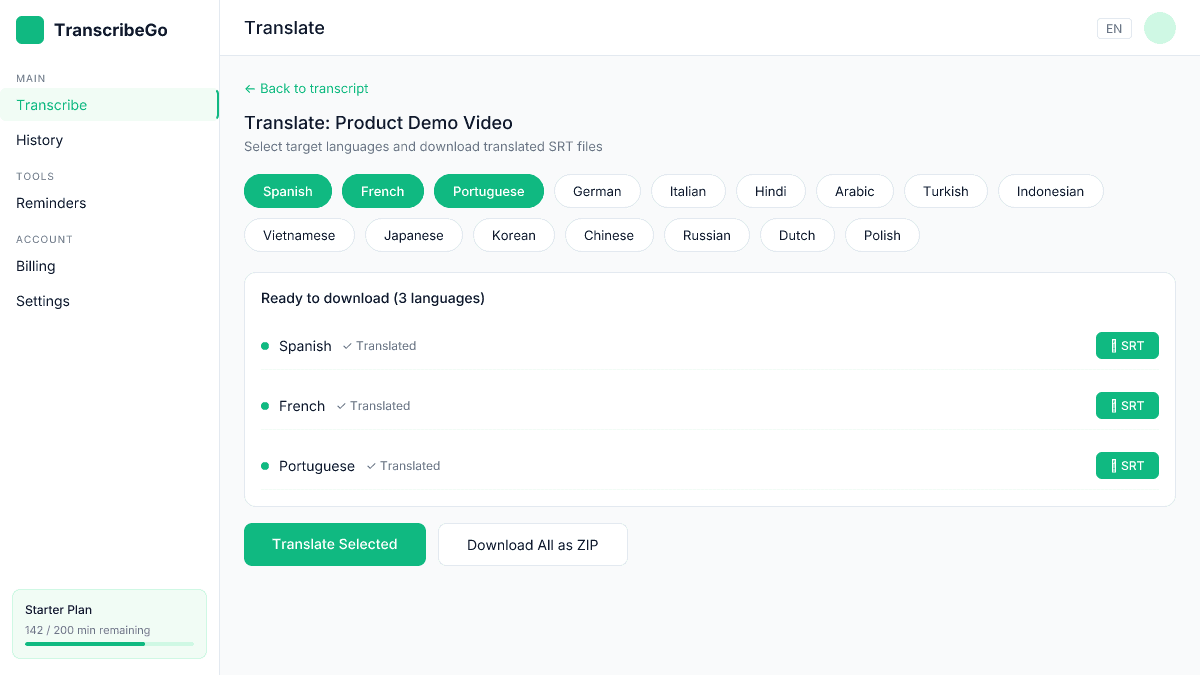
With TranscribeGo, translation is built into the workflow. After transcribing, select any of the 90+ supported languages, and the platform generates a translated version that you can download as a new SRT file — preserving all the original timestamps. This is dramatically faster than translating subtitle files manually or hiring translators for each language.
For a deeper look at using transcription for content repurposing, check out our guide on how to transcribe YouTube videos to text.
Try TranscribeGo Free
10 free minutes. No credit card required.
What program opens SRT files?▾
Any plain-text editor can open and edit SRT files — Notepad (Windows), TextEdit (Mac, in plain text mode), VS Code, Sublime Text, or Atom. Media players like VLC can also load SRT files alongside video for playback. For dedicated subtitle editing with a visual timeline, try Subtitle Edit (free) or Aegisub.
Can I upload SRT files to YouTube?▾
Yes. In YouTube Studio, go to your video's Subtitles section, click "Add language," then "Upload file" and select "With timing." Upload your .srt file and YouTube will use your timestamps and text instead of auto-generated captions. This gives you much better accuracy, especially for technical terms, brand names, and non-English content.
What's the difference between SRT and VTT files?▾
Both store timed subtitles, but they differ in syntax and capabilities. SRT uses commas for milliseconds (00:00:05,000) while VTT uses periods (00:00:05.000). VTT supports CSS-based styling and is the official W3C web standard for HTML5 video. SRT has broader support across video editors, desktop players, and upload platforms. For web-only use, VTT is technically preferred; for everything else, SRT is the safer choice.
How do I create an SRT file automatically?▾
The fastest way is to use an AI transcription tool. Upload your video or audio file (or paste a URL), let the AI generate the transcript with timestamps, and download the result as an .srt file. TranscribeGo supports video/audio upload, URL transcription (YouTube, TikTok, Vimeo), and outputs SRT files with accurate timestamps — usually in under a minute.
Do SRT files improve video SEO?▾
Yes. When you upload an SRT file to YouTube or embed captions on your site, search engines can index the subtitle text. This makes your video discoverable for spoken keywords that wouldn't otherwise be searchable. Studies show subtitled videos can see up to 7% more organic traffic, and YouTube's algorithm favors videos with accurate captions for recommended content.