
How to Add Subtitles to Videos for Social Media (Step-by-Step)
Short answer: upload your video to TranscribeGo, let our AI generate an accurate transcript, download the SRT file, and import it into your editing tool or upload it directly to the platform. The whole process takes under two minutes for most clips.
Adding subtitles to social media videos isn't just a nice-to-have anymore — it's a competitive necessity. Studies show that videos with captions receive up to 40% more views than those without, and viewers are 80% more likely to watch until the end when subtitles are available. With most users scrolling through Instagram, TikTok, and LinkedIn with their sound off, captions are often the only thing standing between your content being watched or skipped.
In this guide, we'll show you exactly how to generate subtitles for any social media video using TranscribeGo, plus platform-specific tips to make sure your captions look great everywhere.
Why Subtitles Matter for Social Media Videos
Before we dive into the how-to, here's why subtitles should be part of every social media video you post:
Most People Watch on Mute
Around 85% of Facebook videos are watched without sound. On Instagram and TikTok, autoplay is the default — and users scroll fast. If your video doesn't communicate visually within the first two seconds, you've lost them. Subtitles keep viewers engaged even when they can't or won't turn on the audio.
Subtitles Boost Engagement Metrics
Facebook's own data shows that adding captions increases view time by 12%. For creators and marketers, that translates directly into better algorithmic reach — platforms reward videos that hold attention longer.
Accessibility Reaches a Wider Audience
Over 430 million people worldwide have disabling hearing loss, according to the WHO. Beyond that, non-native speakers and people in noisy environments all benefit from captions. Subtitles aren't just a growth hack — they're an accessibility requirement that expands your potential audience.
How to Add Subtitles to Social Media Videos with TranscribeGo
Here's the step-by-step process. You'll need a video file (or a URL) and a web browser — nothing to install.
Step 1: Upload Your Video
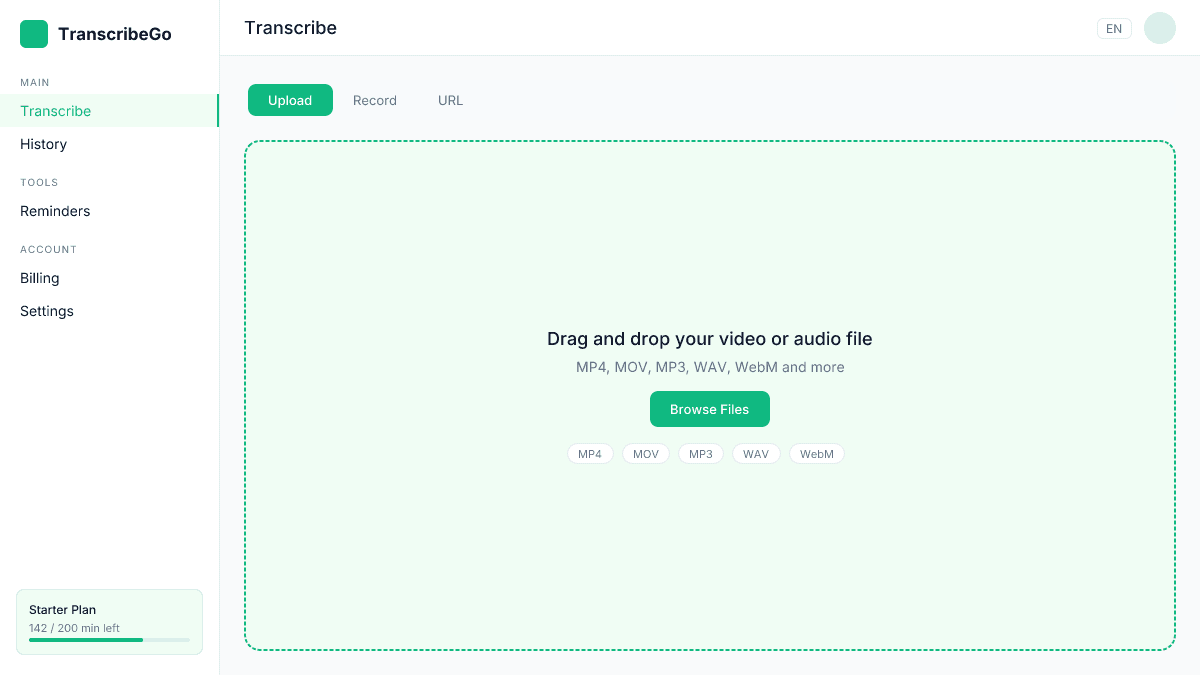
Go to transcribego.com and sign in (or start with 10 free minutes, no credit card needed). On the Transcribe page, you have three options: drag and drop a video file, record audio directly, or paste a URL from YouTube, TikTok, or Vimeo.
For social media content, you'll usually be working with a video file from your camera roll or editing software. Just drag it into the upload zone — TranscribeGo supports MP4, MOV, WebM, and all common formats.
Step 2: Generate the Transcript
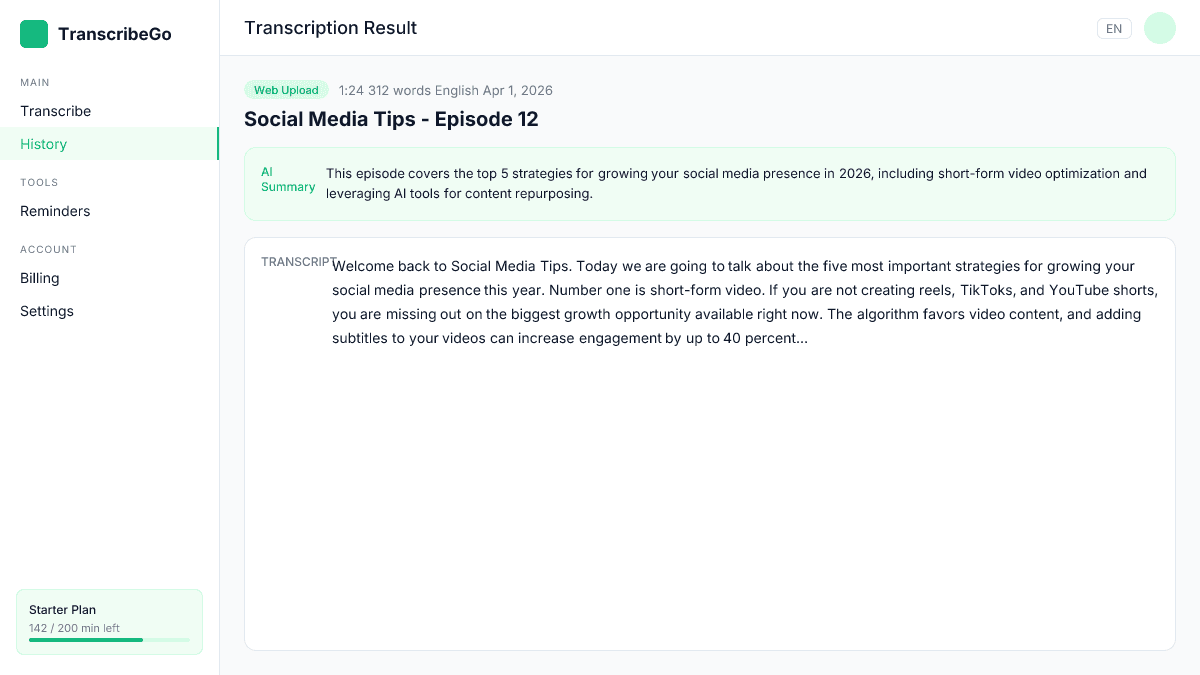
Once your video is uploaded, TranscribeGo's AI engine processes the audio and generates a time-stamped transcript. For a typical 60-second social media clip, this takes about 10–15 seconds. Longer videos (up to 5+ hours) are handled automatically in the background.
The AI achieves 95–98% accuracy across 90+ languages, so you'll rarely need to make corrections — but you can always edit the transcript if needed.
Step 3: Download the SRT File
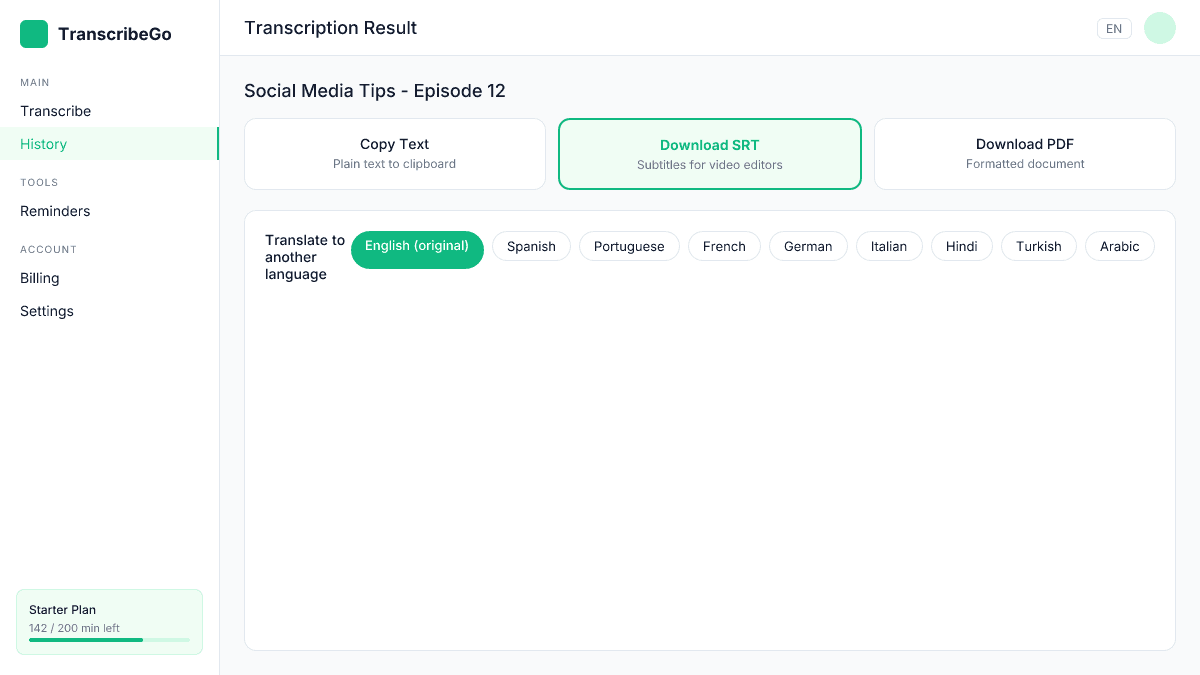
With your transcript ready, click the SRT download button. This generates a standard SRT subtitle file with proper timestamps that works with every major video platform and editing tool.
SRT (SubRip Text) is the universal subtitle format — it's supported by YouTube, Facebook, LinkedIn, Vimeo, and every video editor from Premiere Pro to CapCut.
Step 4: Add Subtitles to Your Platform or Editor
Now take that SRT file and add it to your video. Here's how for each major platform:
Upload directly to the platform:
- YouTube: Upload your SRT in YouTube Studio under Subtitles → Add Language → Upload File
- Facebook/Instagram: Upload SRT when creating a post in Creator Studio under Captions → Upload SRT
- LinkedIn: Add the SRT file during video upload in the captions section
- TikTok: Use TikTok's caption feature or burn subtitles into the video using CapCut
Burn subtitles into the video (hardcode):
If you want subtitles baked directly into the video (essential for Instagram Reels, TikTok, and Stories), import the SRT file into your editor:
- CapCut: Import video → Auto Captions or import SRT → customize style
- Premiere Pro: File → Import → select SRT → drag to timeline
- DaVinci Resolve: File → Import → Subtitle → select SRT
- Canva: Upload video → add auto-captions or manually place text
Platform-Specific Subtitle Tips
Each social media platform has its own quirks when it comes to subtitles. Here's what works best:
Instagram Reels & Stories
- Keep it short: Maximum 6 words per line for readability on mobile
- Position carefully: Place text in the center or upper third — the bottom is covered by UI elements (like, comment, share buttons)
- Use bold, high-contrast fonts: White text with a dark outline or background box works best
- Aspect ratio: 9:16 vertical — make sure subtitles don't get cropped
TikTok
- Hardcode subtitles: TikTok's native auto-captions have improved, but importing a TranscribeGo SRT through CapCut gives you more control and accuracy
- Match trending styles: Use dynamic animated text that highlights words as they're spoken
- Safe zone: Keep text within the center 80% of the screen to avoid platform UI overlap
YouTube
- Use closed captions (CC): Upload your SRT as a separate track — viewers can toggle on/off and YouTube indexes the text for SEO
- Multiple languages: Generate transcripts in one language, then use TranscribeGo's translation feature to create SRT files in other languages
- Timing matters: Ensure subtitle segments don't exceed 2 lines and stay on screen for at least 1.5 seconds
- Professional formatting: Use clean, sans-serif fonts — avoid overly flashy animated captions
- Always add captions: LinkedIn autoplays on mute by default, so subtitles are critical for the first 3 seconds to hook viewers
- Upload SRT directly: LinkedIn supports SRT upload during video posting
Bonus: Translate Your Subtitles for Global Reach
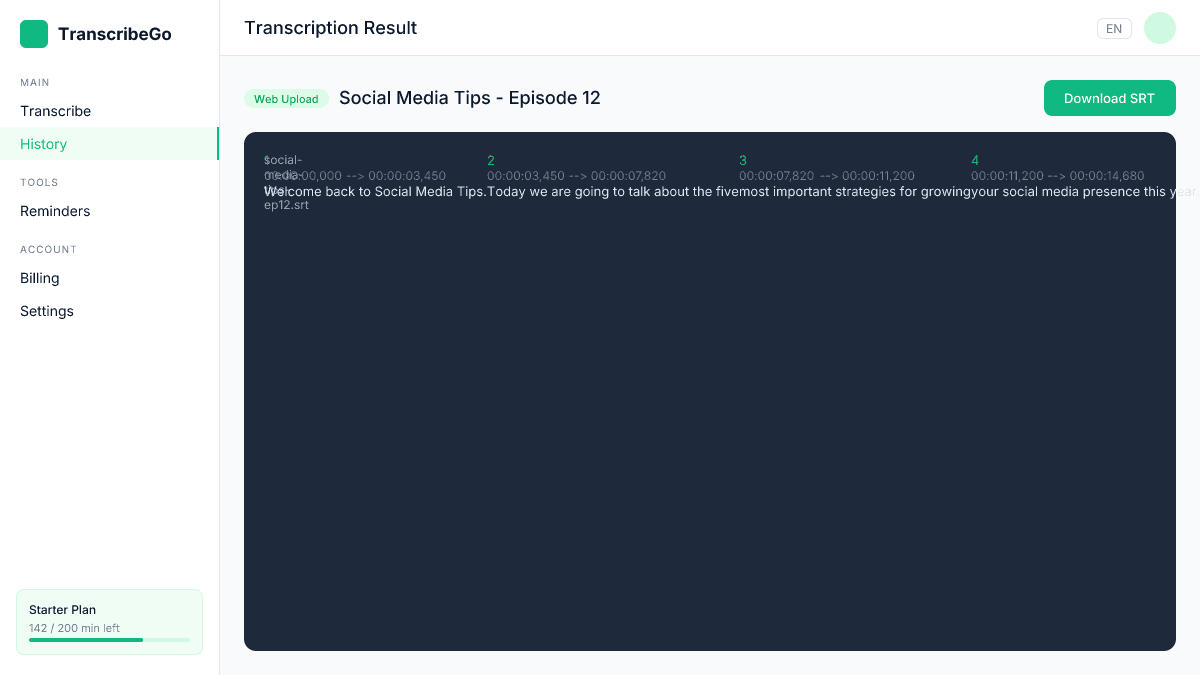
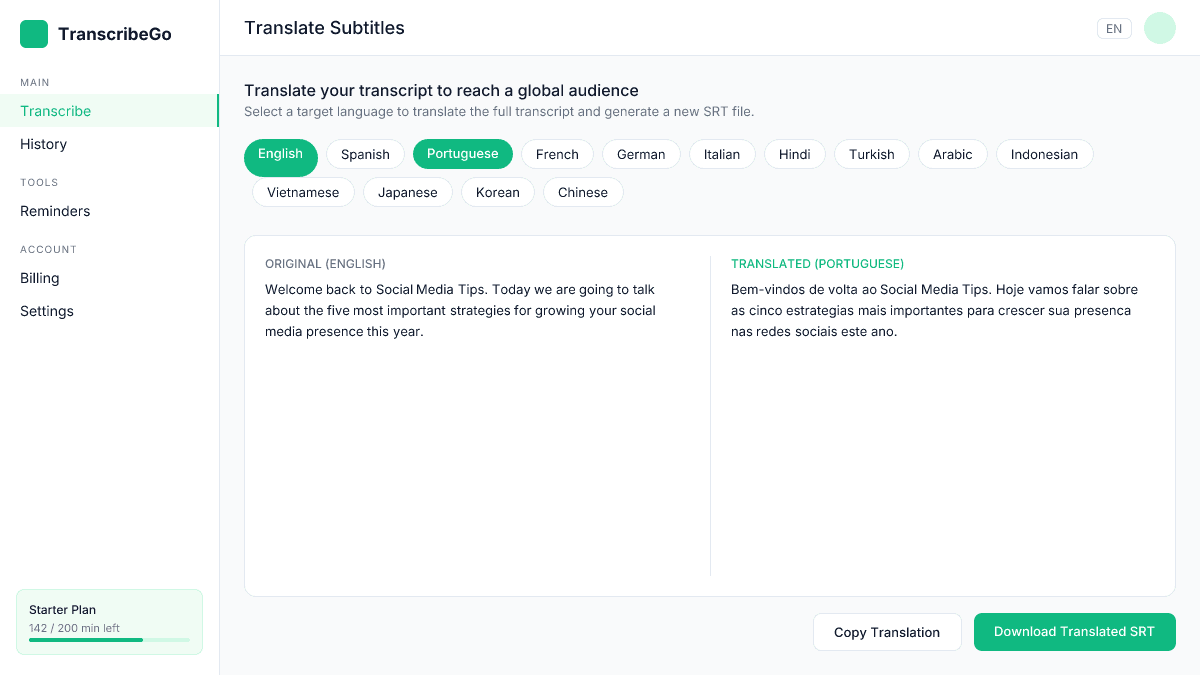
If you're targeting an international audience, TranscribeGo can translate your transcript into 90+ languages with a single click. Generate an SRT in English, then create translated versions in Spanish, Portuguese, French, Hindi, or any other language — all from the same transcript.
This is especially powerful for YouTube (where you can upload multiple subtitle tracks) and for repurposing content across markets.
TranscribeGo vs. Other Subtitle Tools
| Feature | TranscribeGo | Canva | Kapwing | VEED |
|---|---|---|---|---|
| AI accuracy | 95–98% | ~90% | ~95% | ~95% |
| SRT download | ✅ | ❌ (burned only) | ✅ | ✅ |
| Translation | 90+ languages | Limited | 70+ languages | 90+ languages |
| URL transcription | ✅ (YouTube, TikTok, Vimeo) | ❌ | ❌ | ✅ |
| Free tier | 10 min/month | Limited | Limited | Limited |
| Price | $3.99–$6.99/mo | $13/mo | $16/mo | $18/mo |
TranscribeGo focuses on one thing — fast, accurate transcription and subtitle generation — at a fraction of the cost of all-in-one video editors.
Try TranscribeGo Free
10 free minutes. No credit card required.
FAQ
Do I need to hardcode subtitles or can I upload an SRT file?▾
It depends on the platform. YouTube, Facebook, and LinkedIn all support SRT uploads as separate caption tracks — viewers can toggle them on or off. For Instagram Reels, TikTok, and Stories, you'll want to hardcode (burn) subtitles directly into the video using an editor like CapCut or Premiere Pro, since these platforms don't support separate SRT tracks.
What subtitle format works best for social media?▾
SRT (SubRip Text) is the most widely supported subtitle format across all platforms and editors. TranscribeGo generates SRT files by default. If you need VTT (Web Video Text Tracks) for specific use cases, you can easily convert SRT to VTT with free online tools.
How do subtitles improve social media engagement?▾
Research shows that captioned videos get up to 40% more views and viewers are 80% more likely to watch until the end. Facebook's data shows a 12% increase in view time for captioned videos. Since most social media users scroll with sound off, subtitles are often the deciding factor in whether someone stops to watch your content.
Can I add subtitles in multiple languages for the same video?▾
Yes. TranscribeGo lets you translate your transcript into 90+ languages. On YouTube, you can upload multiple SRT files as separate subtitle tracks — one per language. For platforms that require hardcoded subtitles (like TikTok or Instagram), you'd create separate video versions with subtitles in each language.
How long does it take to generate subtitles with TranscribeGo?▾
For a typical 60-second social media clip, subtitle generation takes about 10–15 seconds. A 10-minute video takes under a minute. Even hour-long recordings are processed in just a few minutes. You get 10 free minutes to try it — no credit card required.
