
Best Tools to Add Subtitles to Videos Automatically in 2026
Short answer: The best automatic subtitle tool depends on your workflow. For accurate subtitles with SRT export, translation to 90+ languages, and the ability to subtitle any video from a URL (YouTube, TikTok, Vimeo), TranscribeGo is the most complete option — with a free tier that includes everything. For social media creators who want animated captions, VEED and Captions are strong picks. For teams who need enterprise compliance, Sonix leads.
Adding subtitles to videos is no longer optional. According to Verizon Media research, 80% of viewers are more likely to watch a video to completion when captions are available. Meanwhile, platforms like Instagram, TikTok, and LinkedIn autoplay videos on mute — making subtitles the difference between a scroll-past and a view. The good news: AI has made automatic subtitle generation fast, accurate, and affordable. We tested 10 tools across real videos — vlogs, interviews, lectures, and social clips — to help you find the right one.
How We Evaluated These Tools
Before the rankings, here's what we tested:
- Accuracy — How well does each tool handle accents, overlapping speakers, and background music?
- Export formats — SRT, VTT, ASS, or burned-in only?
- Language support — How many languages for transcription and translation?
- Ease of use — Can you go from video to subtitles in under 2 minutes?
- Pricing — What do you actually get for free, and what costs extra?
- Extra features — Translation, styling, URL input, summaries?
The 10 Best Automatic Subtitle Tools in 2026
1. TranscribeGo — Best All-in-One Subtitle Generator
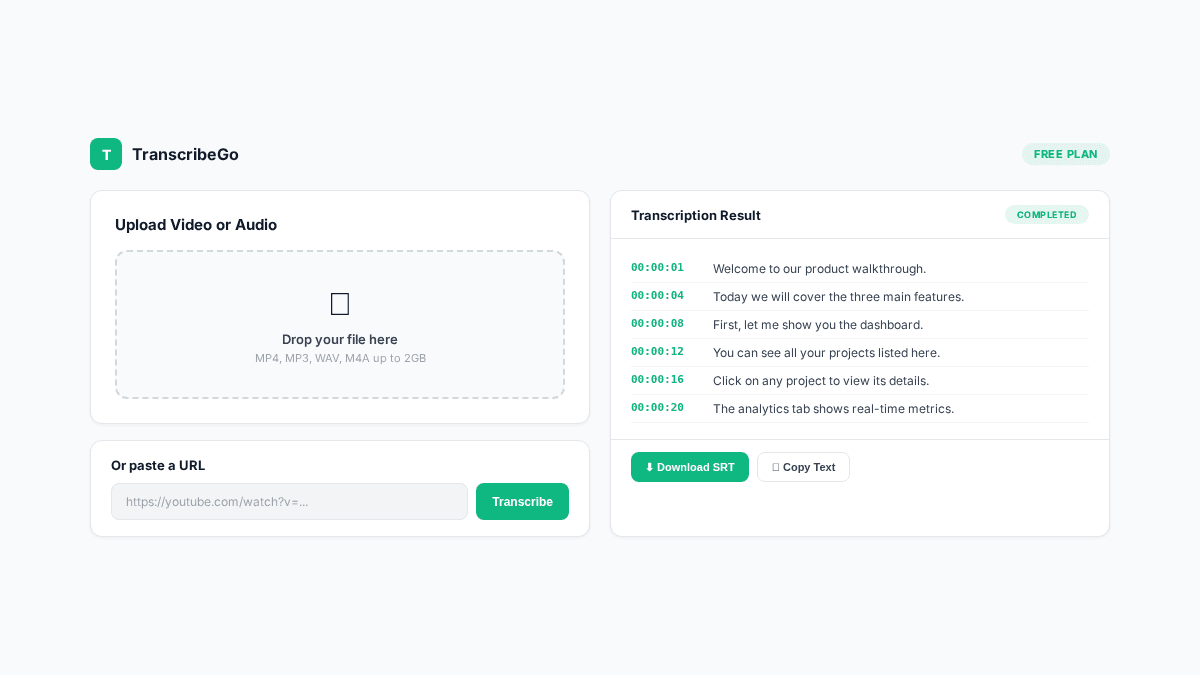
TranscribeGo generates subtitles from uploaded audio and video files, URLs from YouTube, TikTok, Vimeo, and other platforms, and even WhatsApp voice notes. Every transcription includes a downloadable SRT file, an AI-generated summary, and one-click translation to 90+ languages.
Free tier: 10 minutes/month, all features included. No credit card required.
What stands out:
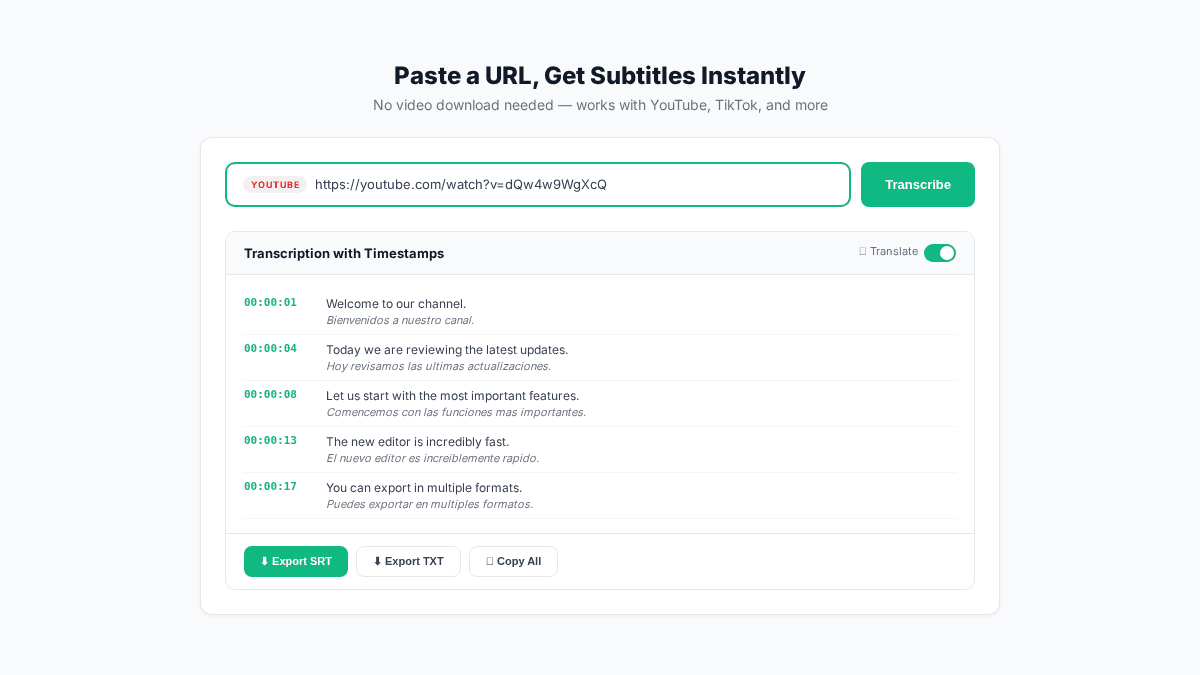
- Paste a YouTube, TikTok, or Vimeo URL and get subtitles instantly — no download needed
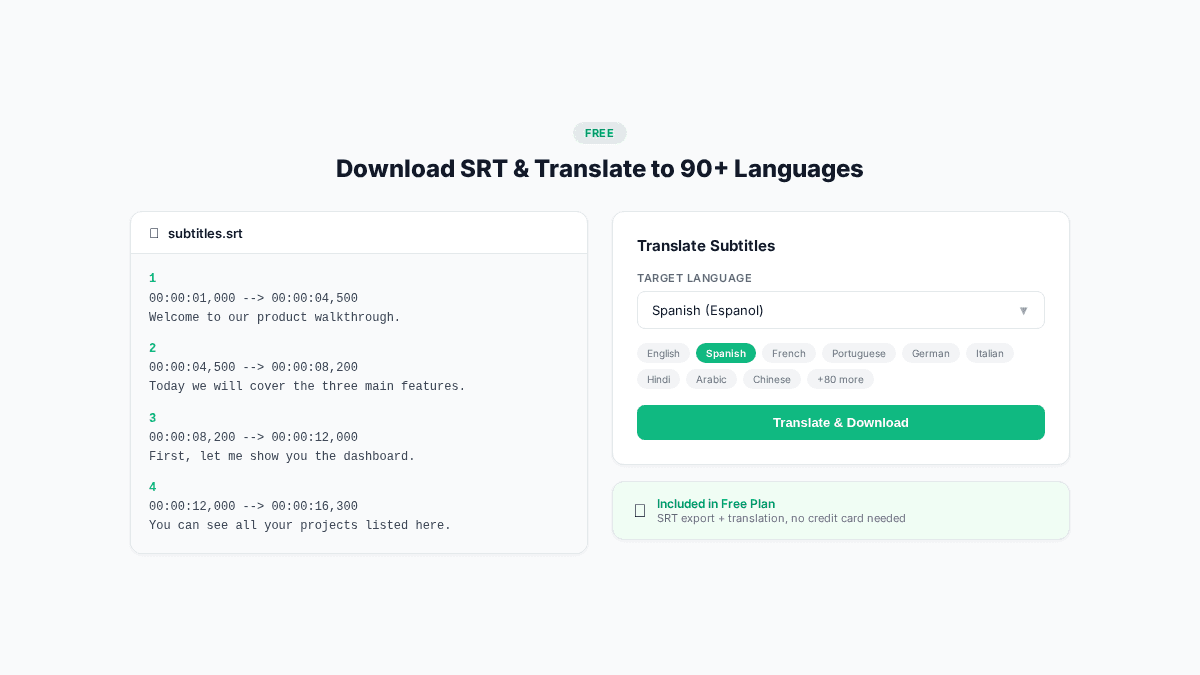
- SRT export included on every plan, including free
- Translate subtitles to 90+ languages with one click
- AI summary for every transcription
- WhatsApp and Telegram bots for on-the-go subtitle generation
- 95–98% accuracy across most audio conditions
Limitations: 10 minutes per month on the free plan. Paid plans start at $3.99/month for 200 minutes. No burned-in subtitle rendering (SRT only — you apply it in your editor).
Best for: Anyone who needs accurate SRT subtitles from files or URLs, with built-in translation and no design overhead.
2. VEED — Best for Animated Social Media Captions
VEED is a browser-based video editor with a strong auto-subtitle feature. It generates captions and lets you style them with animations, colors, fonts, and effects — ideal for TikTok and Instagram Reels.
Free tier: 10-minute videos, with watermark. Subtitles limited to 2 hours of transcription.
What stands out:
- Eye-catching animated caption styles (word-by-word highlight, karaoke, etc.)
- Built-in video editor for trimming, cropping, and adding effects
- One-click subtitle translation to 125+ languages
- Browser-based — no software to install
Limitations: Free videos include a VEED watermark. Full subtitle styling and brand kits require paid plans starting at $24/month. No URL transcription — you must upload the video file.
Best for: Social media creators who want stylized, animated captions directly on their videos.
3. Kapwing — Best Free Subtitle Editor
Kapwing combines auto-generated subtitles with a powerful timeline editor. You can adjust timing, split lines, and customize appearance — all in the browser.
Free tier: 4 hours of transcription per month. Videos up to 4 minutes with watermark.
What stands out:
- Full subtitle timeline editor for precise adjustments
- AI-powered auto-subtitles in 70+ languages
- Built-in video editor with layers, text, and audio tools
- Burned-in or SRT/VTT export
- Team collaboration features
Limitations: Watermark on free exports. Exports over 4 minutes require a paid plan ($24/month). Subtitle accuracy can drop with background music.
Best for: Editors who want fine-grained control over subtitle timing and appearance.
4. Descript — Best for Podcast and Video Editing Workflows
Descript turns transcripts into subtitles as part of its text-based video editing suite. Edit the transcript text and the video updates automatically.
Free tier: 1 hour of transcription per month.
What stands out:
- Edit video by editing the transcript — delete a word and the video clip is removed
- Automatic filler word removal ("um", "uh")
- Speaker labels and multi-track support
- SRT export and burned-in captions
- Screen recording included
Limitations: Only 1 hour free. Subtitle styling is basic compared to VEED or Captions. Designed for editing workflows — overkill if you just need subtitles.
Best for: Podcasters and video editors who want subtitles integrated into their editing workflow.
5. Captions — Best Mobile Subtitle App
Captions (formerly Captions.ai) is a mobile-first app that auto-generates stylized subtitles with trendy animations. Popular with TikTok and YouTube Shorts creators.
Free tier: Limited exports with watermark. Full features require a subscription.
What stands out:
- AI-generated captions with viral-style animations
- Eye contact correction, background removal, and other AI video effects
- 100+ subtitle styles out of the box
- Available on iOS and Android
Limitations: Free tier adds a watermark. Pro plan is $9.99/month or $79.99/year. Desktop version is limited. No SRT export on the free plan. No URL transcription support.
Best for: Mobile creators who want trendy animated captions for short-form video.
6. Sonix — Best for Enterprise and Compliance
Sonix offers subtitle generation with SOC 2 Type II certification, HIPAA-ready workflows, and enterprise-grade accuracy across 53+ languages.
Free tier: 30-minute trial (one-time, not recurring).
What stands out:
- Up to 99% accuracy on clear audio
- SOC 2 Type II certified — suitable for healthcare and legal
- Multi-speaker detection and custom vocabulary
- SRT, VTT, and burned-in export
- API access for automation
Limitations: One-time 30-minute trial, then pay-as-you-go at $10/hour. No free recurring tier. Interface is functional but not modern compared to VEED or Kapwing.
Best for: Enterprise teams and industries that require compliance certifications and audit trails.
7. Happy Scribe — Best for European Language Accuracy
Happy Scribe specializes in European languages with both AI-generated and human-reviewed subtitle options.
Free tier: 10 minutes on signup (one-time).
What stands out:
- Strong accuracy across French, German, Spanish, Portuguese, and other European languages
- Choose between AI subtitles and human-reviewed subtitles
- Interactive subtitle editor with waveform view
- SRT, VTT, STL, and EBU export formats
- Integration with Premiere Pro and Final Cut
Limitations: One-time 10-minute trial. Pay-as-you-go starts at €0.20/minute. Human review costs significantly more. Not competitive for ongoing free use.
Best for: European content creators and production teams who need professional-grade subtitles in EU languages.
8. Maestra — Best for Multilingual Subtitle Translation
Maestra combines transcription, translation, and voiceover in one platform, supporting 125+ languages for subtitle generation and translation.
Free tier: Limited trial minutes.
What stands out:
- Subtitle translation to 125+ languages with one click
- AI dubbing and voiceover alongside subtitles
- Automatic speaker detection
- SRT, VTT, and TXT export
- Real-time collaboration
Limitations: Limited free trial. Paid plans start at $19/month. Interface can feel cluttered for users who only need subtitles. Accuracy varies more on non-English languages.
Best for: Global content teams who need subtitles, translation, and dubbing in a single platform.
9. Clideo — Basic Online Subtitle Adder
Clideo is a simple browser-based video tool that lets you add subtitles manually or auto-generate them from audio. It's part of a broader suite of basic online video utilities (merge, compress, resize).
Free tier: Limited processing with watermark on all exports.
What stands out:
- No signup required — upload and start immediately
- Simple manual subtitle editor with timeline
- Auto-generate subtitles from audio (basic AI)
- Part of a suite of online video tools
Limitations: Free exports include a prominent watermark. Auto-subtitle accuracy is noticeably lower than dedicated tools (~80–85%). No SRT export on the free plan. No URL transcription — you must upload files. No translation features. Processing speed is slow on longer videos. Paid plan is $9/month.
Best for: Users who need a quick, no-signup way to add basic subtitles to short clips and don't mind a watermark.
10. Canva — Best for Quick Branded Subtitles
Canva's video editor includes an auto-subtitle feature that matches your brand fonts, colors, and style — ideal for teams already using Canva for design.
Free tier: Auto-subtitles available on Canva Free with basic styling.
What stands out:
- Auto-subtitles that match your brand kit automatically
- Integrated into Canva's full design suite
- Simple drag-and-drop video editing
- Share and export directly to social platforms
Limitations: Subtitle accuracy is lower than dedicated tools (~85–90%). SRT export is not available — subtitles are burned in only. Limited control over timing and formatting. Not suitable for long-form video.
Best for: Teams and creators already using Canva who want quick captions on short social videos.
Comparison Table
| Tool | Free Tier | Accuracy | SRT Export | URL Input | Translation | Burned-in |
|---|---|---|---|---|---|---|
| TranscribeGo | 10 min/month | 95–98% | Yes | Yes | 90+ languages | No |
| VEED | 2h (watermark) | ~93% | Yes (paid) | No | 125+ languages | Yes |
| Kapwing | 4h/month (watermark) | ~91% | Yes | No | 70+ languages | Yes |
| Descript | 1h/month | ~94% | Yes | No | No | Yes |
| Captions | Limited (watermark) | ~92% | Paid only | No | 100+ languages | Yes |
| Sonix | 30 min (trial) | ~99% | Yes | No | 53+ languages | Yes |
| Happy Scribe | 10 min (trial) | ~93% | Yes | No | 120+ languages | No |
| Maestra | Trial | ~91% | Yes | No | 125+ languages | Yes |
| Clideo | Limited (watermark) | ~80–85% | Paid only | No | No | Yes |
| Canva | Yes (basic) | ~85–90% | No | No | Limited | Yes |
How to Choose the Right Subtitle Tool
The right tool depends on what you're building and how you work:
If you need SRT files for professional use, TranscribeGo, Sonix, and Happy Scribe all export clean SRT files. TranscribeGo is the only one that includes SRT on the free plan with URL input — so you can subtitle a YouTube video without downloading it first.
If you create short-form social content, VEED and Captions offer animated, stylized captions designed for TikTok and Instagram. They burn subtitles directly into the video, so there's no extra step to add them in your editor.
If you work with video in multiple languages, TranscribeGo (90+ languages), Maestra (125+ languages), and VEED (125+ languages) offer one-click subtitle translation. TranscribeGo stands out by including translation on the free plan.
If you edit podcasts or long-form video, Descript's text-based editing approach lets you refine subtitles as part of your edit. Sonix is the better choice if compliance (SOC 2, HIPAA) matters.
If you want free subtitles without watermarks, TranscribeGo is the cleanest free option — SRT export with no branding, plus AI summaries and translation to 90+ languages included at no cost. Most other tools either add watermarks or lock SRT export behind a paywall.
Why SRT Files Still Matter
While burned-in captions are convenient for social media, SRT files remain the standard for professional video production. An SRT file gives you control over timing, formatting, and placement in any video editor — Premiere Pro, Final Cut, DaVinci Resolve, or even YouTube's built-in subtitle uploader. For a deeper understanding of SRT formatting and best practices, check out our complete guide to SRT files.
The key advantage of tools like TranscribeGo that export SRT is flexibility: you generate the subtitles once, then use them anywhere. Burned-in captions lock you into one style and one platform.
Try TranscribeGo Free
10 free minutes. No credit card required.
What is the most accurate automatic subtitle generator in 2026?▾
For enterprise use with the highest raw accuracy, Sonix claims up to 99% on clear audio with its SOC 2-certified platform. For general-purpose subtitle generation, TranscribeGo delivers 95–98% accuracy across most audio conditions and includes SRT export on the free plan. Accuracy depends heavily on audio quality, background noise, and speaker clarity — so testing with your own content is always recommended.
Can I add subtitles to a YouTube video without downloading it?▾
Yes. TranscribeGo lets you paste a YouTube URL directly and generates a full transcript with downloadable SRT subtitles — no need to download the video first. Most other subtitle tools require you to upload the video file manually. For a step-by-step walkthrough, see our guide on how to transcribe YouTube videos.
What is the best free subtitle generator with no watermark?▾
TranscribeGo is the standout option — it offers free subtitle generation with SRT export, AI summaries, and translation to 90+ languages, all without watermarks. You get 10 minutes per month on the free plan with every feature unlocked. Most competitors (VEED, Kapwing, Captions, Clideo) add watermarks to free exports or lock SRT behind paid plans.
What is the difference between SRT subtitles and burned-in captions?▾
SRT files are separate text files with timestamps that you can load into any video editor or platform. They're editable, translatable, and platform-independent. Burned-in captions are permanently rendered into the video pixels — they look polished but can't be changed, translated, or removed after export. For professional workflows, SRT is preferred. For quick social media posts, burned-in captions save a step. Read more in our guide to subtitle formats.
How much do automatic subtitle tools cost?▾
Pricing ranges from free to enterprise rates. TranscribeGo starts at $3.99/month for 200 minutes with all features. VEED and Kapwing charge $24/month for watermark-free exports. Captions is $9.99/month. Sonix charges $10/hour pay-as-you-go. Most tools offer limited free tiers — TranscribeGo's free plan is the most feature-complete, including SRT export, URL transcription, and translation at no cost.
Can I translate subtitles to another language automatically?▾
Yes. TranscribeGo translates subtitles to 90+ languages with one click, included on all plans. VEED and Maestra support 125+ languages but require paid plans for full translation features. Kapwing supports 70+ languages. For the widest free translation coverage, TranscribeGo is the best option. See our guide on translating transcriptions for more details.