
You can transcribe any YouTube video to text in under a minute — just paste the URL into TranscribeGo, and the AI handles the rest. No browser extensions, no software downloads, no copy-pasting auto-captions. You get a clean, accurate transcript you can read, search, edit, download as SRT, or translate into 90+ languages.
YouTube's built-in captions are a starting point, but they're often riddled with errors — especially for accented speech, technical terms, or multi-speaker content. If you need a transcript you can actually use for work, study, or content creation, you need a dedicated transcription tool.
In this guide, we'll cover three methods to get a YouTube transcript: TranscribeGo's URL transcription (fastest), YouTube's native captions (free but limited), and manual transcription (slowest).
Why Would You Need a YouTube Transcript?
Over 500 hours of video are uploaded to YouTube every minute (Statista). Here's why that creates massive demand for transcription:
- Content repurposing: Turn a 20-minute video into a blog post, newsletter, or social thread in minutes instead of hours
- Study and research: Students and researchers can search, highlight, and cite specific parts of lectures and interviews
- SEO: Transcripts make video content indexable — sites that added transcripts saw 6.26% of search traffic land on transcript pages
- Accessibility: Provide text alternatives for deaf and hard-of-hearing viewers
- Translation: Get the transcript first, then translate it — much more accurate than auto-translated captions
Method 1: Transcribe with TranscribeGo (Recommended)
This is the fastest method. Paste a YouTube URL, and TranscribeGo extracts the audio, transcribes it with AI, and delivers a formatted transcript — all in your browser.
Step 1: Copy the YouTube Video URL
Open the YouTube video you want to transcribe. Copy the URL from your browser's address bar. Any format works: youtube.com/watch?v=..., youtu.be/..., or YouTube Shorts URLs.
Step 2: Paste the URL into TranscribeGo
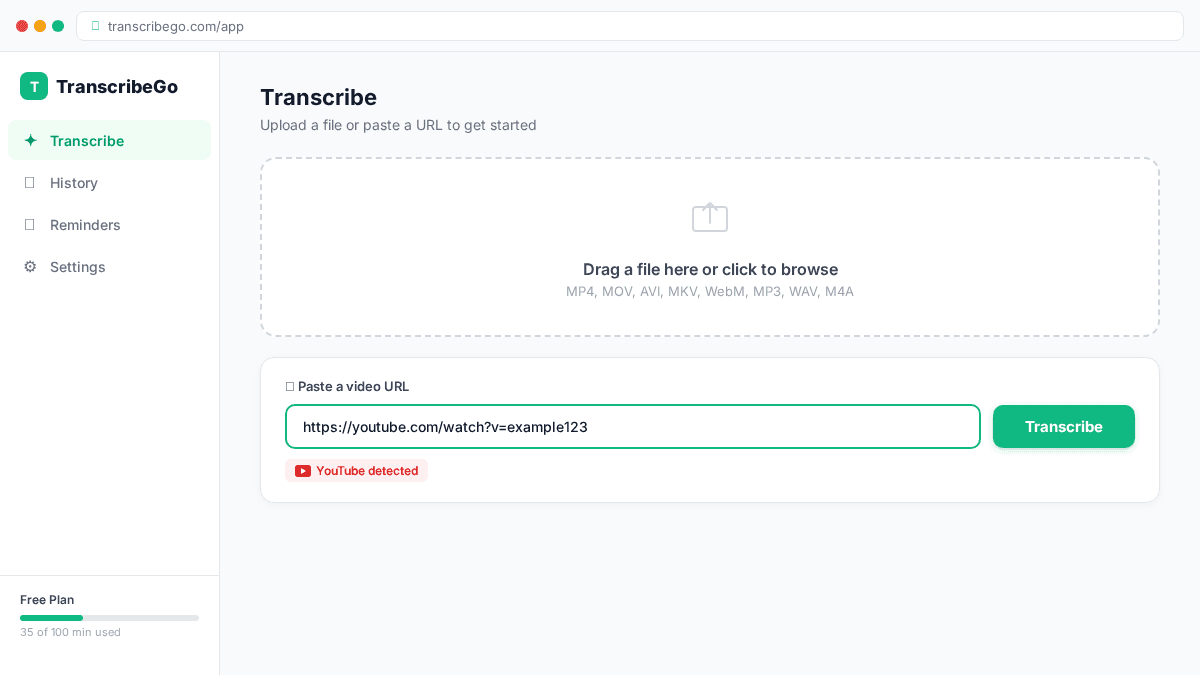
Go to transcribego.com and sign in (or start free — you get 10 minutes at no cost). On the main screen, paste the YouTube URL into the URL field and click Transcribe.
Step 3: Wait for Processing
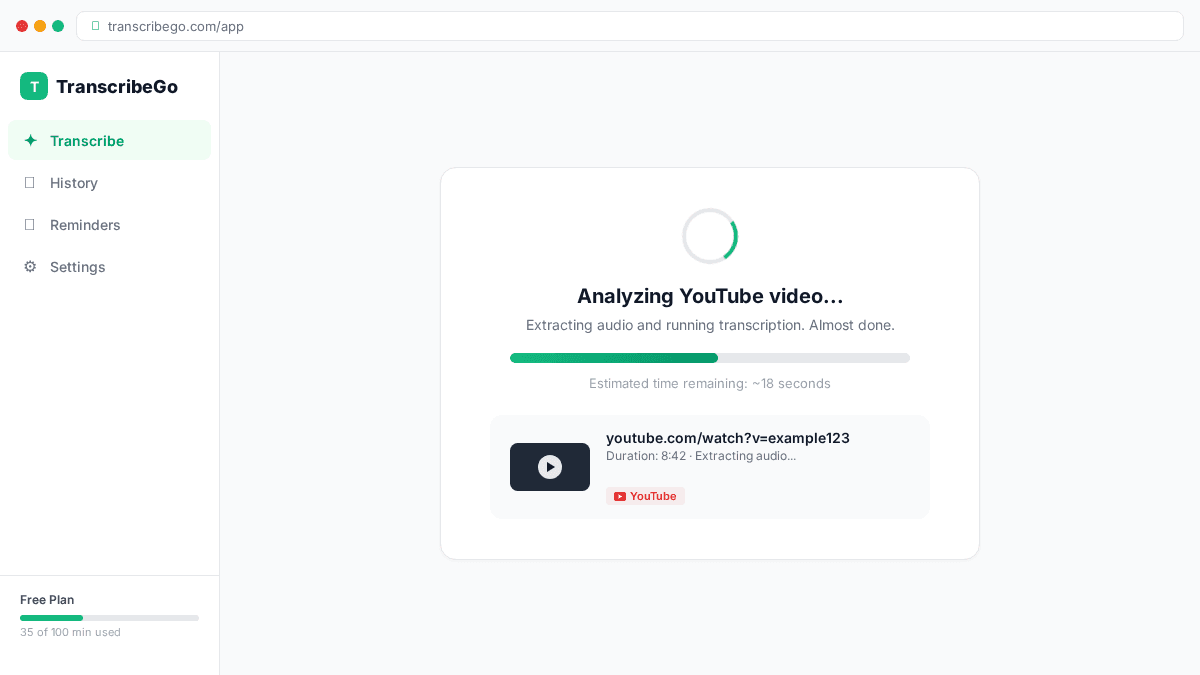
TranscribeGo extracts the audio from the YouTube video and runs it through its AI engine. For most videos under 10 minutes, you'll have your transcript in under 30 seconds. Longer videos are processed in the background.
Step 4: Read, Edit, or Download Your Transcript
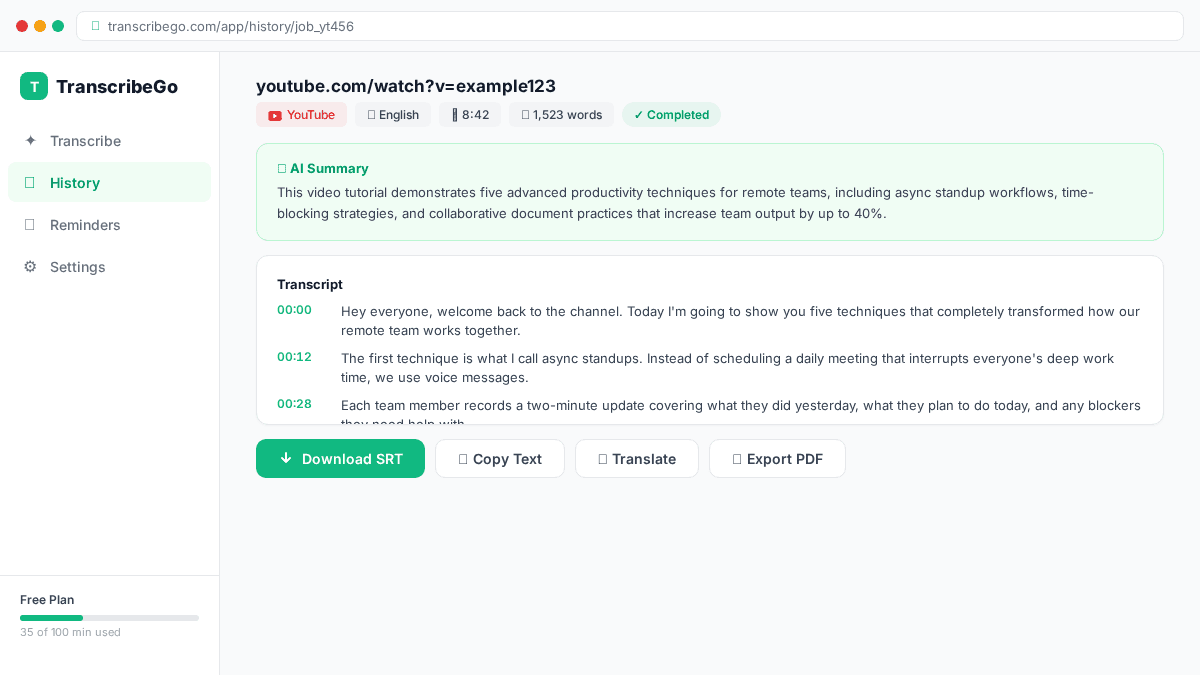
Once done, you get a full text transcript. From here you can:
- Read and search the full text in your browser
- Download as SRT for subtitles you can import into video editors
- Translate into any of 90+ supported languages with one click
- Copy the text to paste into docs, notes, or your CMS
What makes this different from YouTube's captions? TranscribeGo uses dedicated AI models optimized for accuracy, while YouTube's auto-captions are a secondary feature. The result: cleaner text, proper punctuation, better handling of accents, and output formats (SRT, plain text) you can actually work with.
Method 2: YouTube's Built-in Transcript
YouTube generates auto-captions for most videos. You can access them without any external tool:
- Open the video on YouTube
- Click the "..." (more) button below the video
- Select "Show transcript"
- The transcript appears in a side panel
Pros: Free, no signup, works on most videos.
Cons: Accuracy varies widely (especially with accents, noise, or multiple speakers). No download option — you have to manually copy-paste. Often missing punctuation. No SRT export. No translation.
Method 3: Manual Transcription
You can transcribe by listening and typing — 100% control over accuracy, but at a significant cost:
- A typical transcriber processes 1 minute of audio in 4–6 minutes of work
- A 30-minute video would take 2–3 hours manually
- Professional services charge $1–3 per minute of audio
Organizations switching to AI transcription reduce costs by up to 70% compared to manual methods.
Comparison: YouTube Captions vs TranscribeGo vs Manual
Tips for Best Results
- Choose videos with clear audio. Studio-recorded content gives near-perfect results; noisy vlogs will have more errors.
- Use the SRT export for subtitles. Download the SRT and import it into your video editor.
- Translate after transcribing. Much more accurate than translating auto-captions.
- Batch your work. The Starter plan ($3.99/mo) gives you 200 minutes — enough for 10–15 average YouTube videos.
- Check your history. Every transcription is saved, so you can come back later.
Try TranscribeGo Free
10 free minutes. No credit card required.
Frequently Asked Questions
Can I transcribe a YouTube video for free?▾
Yes. TranscribeGo includes 10 free minutes per month — no credit card required. For a typical 8-10 minute video, that's one full transcription at no cost. YouTube's built-in transcript is also free but has limited accuracy and no download options.
How accurate is AI transcription of YouTube videos?▾
Modern AI engines achieve 95%+ accuracy on clear audio in English, with strong performance across 90+ languages. This significantly outperforms YouTube's auto-captions, especially with accents and technical vocabulary.
Can I download a YouTube transcript as an SRT subtitle file?▾
With TranscribeGo, yes. After transcribing via URL, download the result as SRT with timestamps — ready to import into Premiere Pro, Final Cut, DaVinci Resolve, or CapCut. YouTube's native transcript does not offer SRT download.
Does transcribing a YouTube video violate copyright?▾
Transcribing for personal use (study, accessibility, research) is generally considered fair use. Republishing a full transcript of copyrighted content could raise legal issues. Use transcripts for your own reference and give proper attribution when quoting.
Can I transcribe YouTube videos in languages other than English?▾
Yes. TranscribeGo supports automatic language detection and transcription in dozens of languages, plus translation into 90+ languages. Transcribe a Spanish video and get the text in English with one click.
