
Quick answer: Record your meeting (Zoom, Google Meet, Teams, or a voice recorder), upload the audio or video file to TranscribeGo, and get a full transcript with an AI-generated summary in under a minute. From there, extract action items, share the transcript with your team, or download it as a text file. No bots joining your call, no monthly seats to pay for — just accurate transcription when you need it.
If you've ever left a meeting thinking "wait, who was supposed to do what?" — you're not alone. Research shows that employees forget 50% of meeting content within one hour and 75% within a week. Worse, 54% of workers leave meetings without knowing what to do next. That's hours of collective time wasted in every organization, every single day.
The fix is simple: transcribe your meetings. A searchable, shareable transcript turns vague recollections into concrete records — complete with decisions, deadlines, and assigned owners.
Here's exactly how to do it, step by step.
Why You Should Transcribe Every Meeting
Before we get into the how, let's look at what's at stake. The average professional spends 23 hours per week in meetings. That's more than half a standard work week.
Without transcription, the value of those hours depends entirely on people's memory — which, as we just saw, is unreliable. Teams that use meeting transcription report 30% higher productivity in action item completion and decision implementation. That's not a marginal improvement; it's the difference between projects that ship on time and projects that stall.
Here's what transcription gives you:
- Accountability: When action items are written down with names and dates, follow-through increases dramatically.
- Searchability: Need to find what was decided about the Q3 budget three weeks ago? Search the transcript instead of asking five people.
- Inclusivity: Team members who missed the meeting — or who aren't native speakers — can read the full transcript at their own pace.
- Legal protection: In regulated industries, having a written record of decisions isn't just useful — it's required.
Step 1: Record Your Meeting
Every major video conferencing platform supports recording:
- Zoom: Click "Record" in the toolbar → choose "Record to this Computer" for a local file.
- Google Meet: Click the three-dot menu → "Record meeting" (requires a Workspace plan).
- Microsoft Teams: Click "More actions" → "Start recording."
- In-person meetings: Use your phone's voice recorder app, or a dedicated recorder. Place it centrally so all speakers are captured clearly.
The key is to get a clean audio file. If you're recording a video call, the platform will usually give you an MP4 or M4A file. For in-person meetings, most phone recorders save as M4A or WAV.
Pro tip: Tell participants the meeting is being recorded. Beyond being courteous (and legally required in many jurisdictions), it actually improves meeting quality — people tend to be more concise and deliberate when they know there's a record.
Step 2: Upload to TranscribeGo
Once you have your recording file, go to transcribego.com and upload it.
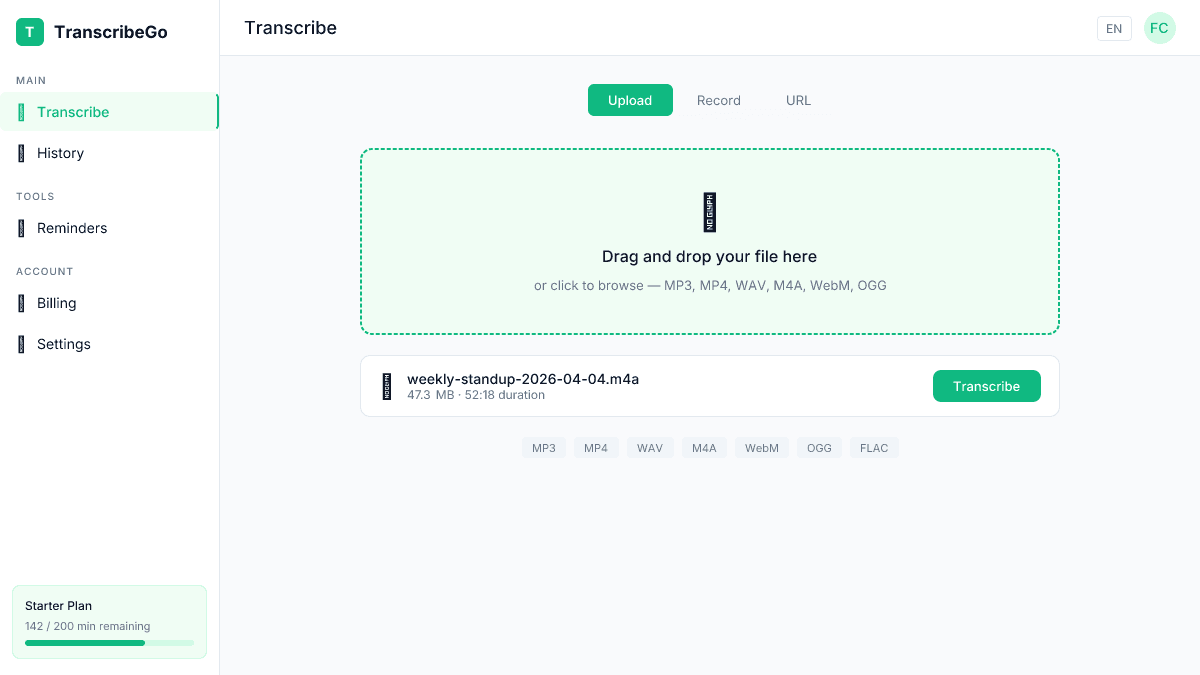
TranscribeGo accepts all common audio and video formats: MP3, MP4, WAV, M4A, WebM, OGG, and more. There's no need to convert your file first — just drag it in.
For long meetings, TranscribeGo handles files up to several hours. A typical one-hour meeting takes about 60-90 seconds to transcribe. You'll see a progress indicator while our AI transcription engine processes the audio.
Step 3: Review Your Transcript and AI Summary
Once processing finishes, you'll see the full transcript along with an AI-generated summary that highlights the key points discussed.
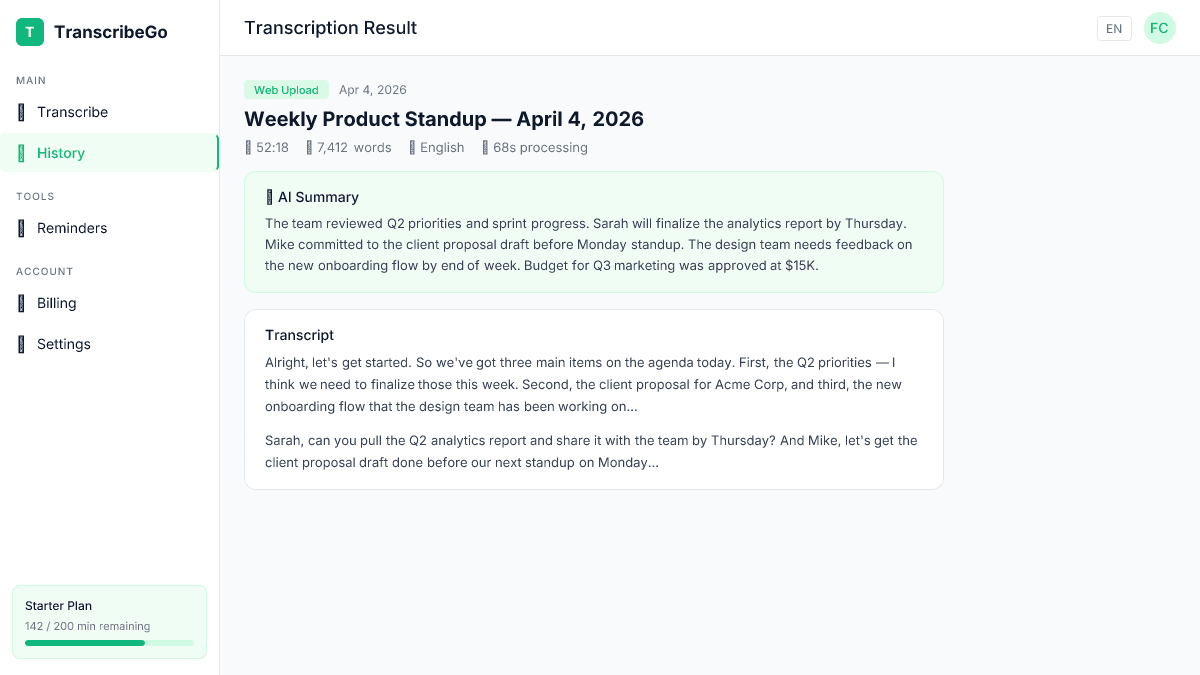
The summary is particularly valuable for meetings. It distills a 30- or 60-minute conversation into a few paragraphs, making it easy to quickly confirm what was discussed and what decisions were made.
Reading the transcript:
- Scan the AI summary first for the high-level takeaways.
- Use your browser's search (Ctrl+F / Cmd+F) to find specific topics or names.
- Look for phrases like "let's do," "action item," "by Friday," "who's going to" — these usually signal commitments.
Step 4: Extract Action Items from the Transcript
This is where the real value lives. A meeting without clear action items is just a conversation. Here's a simple framework for pulling action items from your transcript:
Look for the three elements of a good action item:
- Who — the person responsible
- What — the specific task
- When — the deadline
Scan your transcript for commitment language. Phrases like "I'll handle that," "Can you send me...," "Let's aim for Friday," or "The next step is..." almost always indicate an action item.
Example from a transcript:
"Sarah, can you pull the Q2 analytics report and share it with the team by Thursday? And Mike, let's get the client proposal draft done before our next standup on Monday."
That's two clear action items:
- Sarah → Pull Q2 analytics report → by Thursday
- Mike → Draft client proposal → by Monday standup
Copy these directly from the transcript into your project management tool (Asana, Notion, Trello, Linear — whatever your team uses). The transcript serves as the source of truth if there's ever a question about what was agreed.
Step 5: Share and Export the Transcript
TranscribeGo gives you several ways to share and store your meeting transcript:
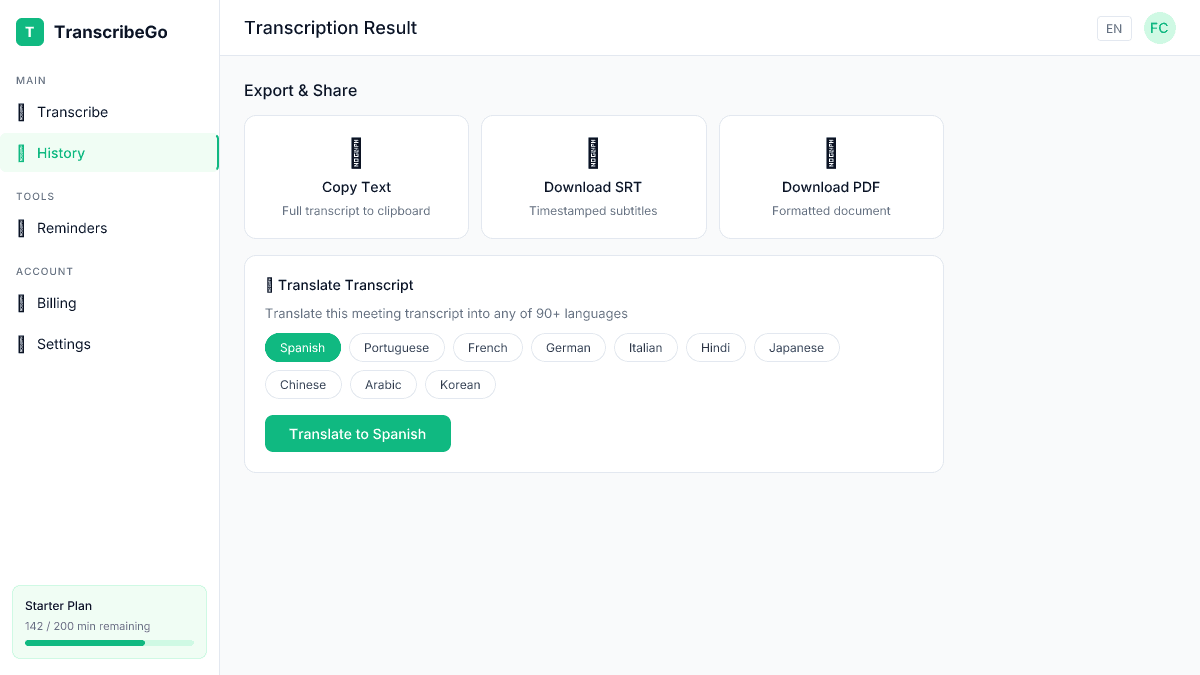
- Copy to clipboard: Paste the full transcript into a Google Doc, Notion page, or email.
- Download as SRT: Useful if you're sharing a recorded video and want timestamped subtitles.
- Translate: If your team is international, translate the transcript into any of 90+ supported languages with one click.
A practical workflow for teams: paste the transcript into a shared document, add a "Action Items" section at the top with the extracted tasks, and share it within 30 minutes of the meeting ending. This creates a habit of accountability that compounds over time.
Step 6: Use the Transcript for Absent Team Members
One of the most underrated benefits of meeting transcription is helping people who couldn't attend. Instead of a vague "here's what you missed" summary from a colleague, they get the full conversation.
Paste the transcript (or a link to it) in your team channel with a note like: "Here's the full transcript from today's product sync. Action items at the top."
This is especially valuable for distributed teams across time zones, where not everyone can attend every meeting live.
Tips for Better Meeting Transcriptions
The quality of your transcript depends heavily on the quality of your audio. Here are practical tips:
For virtual meetings:
- Use a headset or dedicated microphone instead of laptop speakers.
- Mute when you're not speaking — background noise degrades transcription quality.
- Avoid talking over each other. Brief pauses between speakers dramatically improve accuracy.
For in-person meetings:
- Place the recording device in the center of the table.
- Choose a quiet room — open offices and cafes add noise that confuses any transcription engine.
- If using a phone, put it face-down to avoid accidental screen taps that stop recording.
For all meetings:
- Start the recording early — don't miss the first few minutes while fumbling with settings.
- State names at the beginning ("This is the weekly product sync with Sarah, Mike, and Alex") — this makes it easier to attribute comments when reviewing the transcript.
Meeting Transcription vs. Live AI Note-Takers: Which Approach?
You might be wondering: should I use a live AI bot that joins my call, or just record and transcribe afterward?
| Feature | Live AI Bot (Otter, Fireflies, etc.) | Record + Transcribe (TranscribeGo) |
|---|---|---|
| Setup | Must connect to calendar, join calls | Just upload a file when you need it |
| Privacy | Bot joins as a participant (visible to all) | No bot — your recording, your control |
| Cost | $10–30/user/month (per-seat pricing) | $3.99–$19.99/mo total (not per-seat) |
| Works with | Zoom, Meet, Teams only | Any audio/video file from any source |
| In-person meetings | Usually not supported | Fully supported — just record with your phone |
| Accuracy | Varies by tool | 95–98% accuracy on clear audio |
Live AI bots are great for teams that meet exclusively on one platform and want fully automated note-taking. But they come with trade-offs: per-seat pricing adds up fast, they can't handle in-person meetings, and having a bot join your call can feel intrusive — especially in sensitive conversations.
TranscribeGo's approach is simpler: record however you want, upload when ready, get your transcript. It works for virtual calls, in-person meetings, phone recordings, and anything else that produces an audio file. And because pricing isn't per-seat, a team of ten people doesn't pay ten times more.
Real-World Meeting Transcription Workflows
Here are three practical workflows used by TranscribeGo users:
The solo professional: Record client calls on Zoom → upload to TranscribeGo → copy action items into a follow-up email → send within the hour. Clients love the professionalism of getting a clear summary with next steps.
The project manager: Record weekly standups → transcribe → paste action items into the team's project board → share the transcript link in Slack. Nothing falls through the cracks because everything is documented.
The student or researcher: Record interviews or focus groups → transcribe → search for specific themes or quotes → export for your paper or report. Saves hours compared to manual transcription.
Try TranscribeGo Free
10 free minutes. No credit card required.
Can I transcribe a meeting that was recorded on my phone?▾
Yes. TranscribeGo accepts audio files from any source — phone voice memos (M4A, WAV), screen recordings (MP4), or dedicated recorder apps. Just upload the file and you'll get your transcript in seconds.
How long does it take to transcribe a one-hour meeting?▾
A one-hour meeting typically takes 60–90 seconds to transcribe on TranscribeGo. Shorter meetings (15–30 minutes) are usually done in under 30 seconds.
Is meeting transcription accurate enough for professional use?▾
With clear audio, AI transcription achieves 95–98% accuracy — comparable to professional human transcribers. For best results, use a good microphone, minimize background noise, and avoid crosstalk between speakers.
Can I transcribe meetings in languages other than English?▾
TranscribeGo supports transcription in dozens of languages, and you can translate any transcript into 90+ languages after transcription. This makes it ideal for international teams where meetings happen in different languages.
What about confidential or sensitive meetings?▾
Since TranscribeGo doesn't require a bot to join your call, you maintain full control over your audio. Record locally, upload when you're ready, and only you have access to the transcript. There's no third-party bot listening in real time.
