
TranscribeGo turns any lecture recording into searchable, editable text in minutes — not hours. Upload an audio file from class, paste a YouTube link to a recorded lecture, or even transcribe a study group discussion. You get a full transcript, an AI-generated summary of the key points, and the option to translate everything into 90+ languages. It's the fastest way to go from "I recorded the lecture" to "I have organized study notes."
If you've ever spent an entire evening rewinding a 90-minute recording trying to find that one formula the professor mentioned, you know the problem. Manually transcribing a one-hour lecture takes 4–6 hours. AI transcription does it in under 5 minutes — and with 95–98% accuracy on clear audio.
Here's exactly how to use TranscribeGo to transform your lecture recordings into study-ready material.
Step 1: Record Your Lecture
Before you can transcribe anything, you need a recording. Most students already have everything they need:
Your phone. The built-in voice recorder on any smartphone captures audio good enough for transcription. Place your phone on the desk near the front of the room, or clip a cheap lapel mic to your bag for better quality.
Your laptop. If the lecture is on Zoom, Google Meet, or Teams, use the platform's built-in recording feature. Many universities also publish lecture recordings through their LMS (Canvas, Moodle, Blackboard).
A dedicated recorder. If you attend large lecture halls where your phone mic can't cut through the noise, a basic USB recorder (under $30) makes a noticeable difference in transcription accuracy.
Step 2: Upload the Recording to TranscribeGo
Once you have your file, open TranscribeGo and drag your recording into the upload area. TranscribeGo supports all common audio and video formats — MP3, MP4, M4A, WAV, WebM, and more.
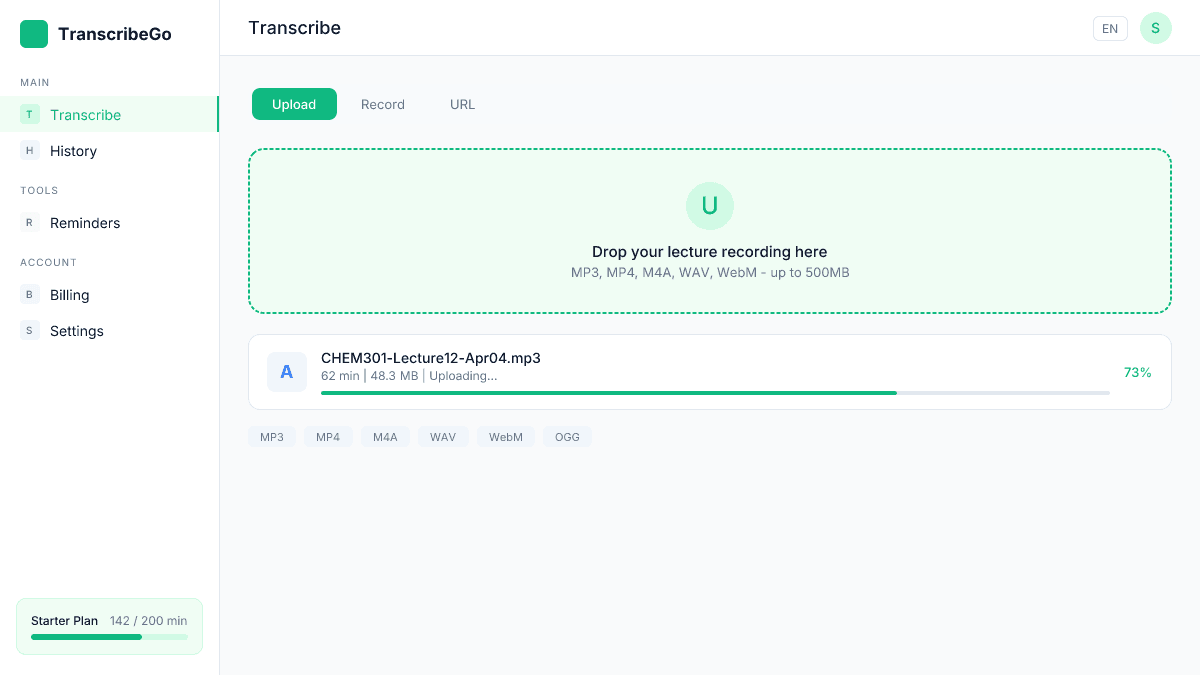
The transcription starts immediately. A typical 60-minute lecture processes in 2–4 minutes. You'll see a progress indicator, and once it's done, the full transcript appears with an AI summary at the top.
What If Your Lecture Is on YouTube?
Many professors upload recorded lectures to YouTube, or your university might host them on a video platform. Instead of downloading the video first, just switch to the URL tab in TranscribeGo, paste the link, and hit Transcribe.
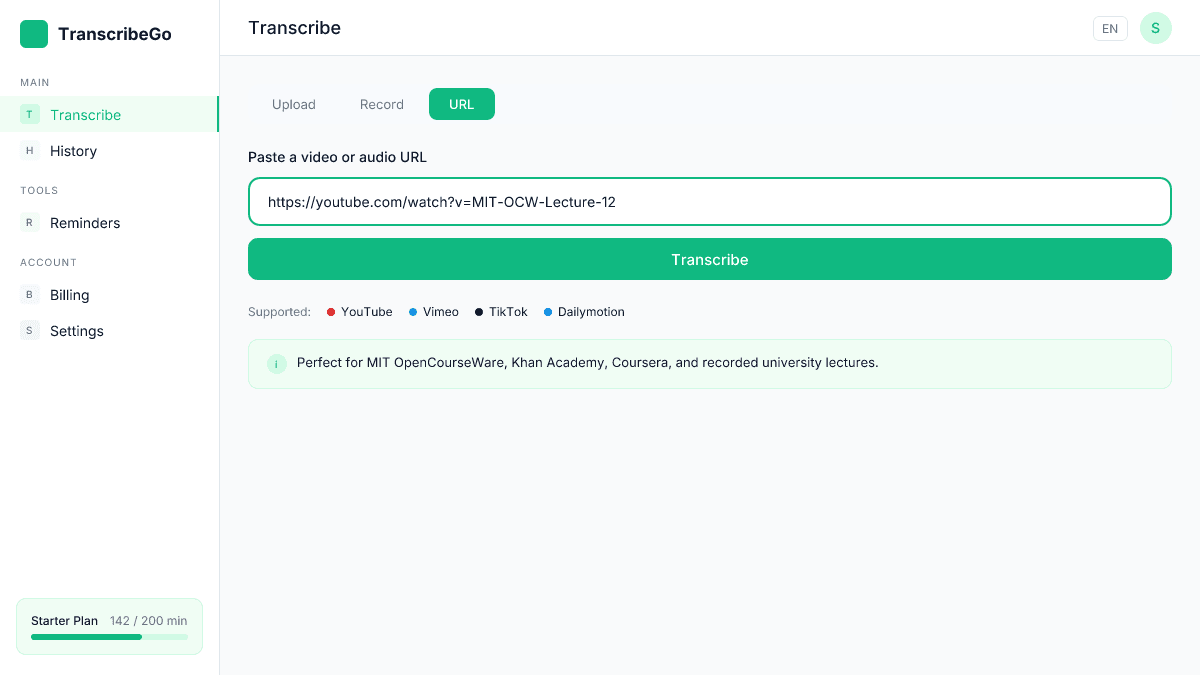
This works with YouTube, Vimeo, TikTok, and most other video platforms. It's especially useful for open courseware (MIT OpenCourseWare, Khan Academy, Coursera previews) where you want notes from a public video.
Step 3: Review Your Transcript and AI Summary
After processing, TranscribeGo gives you two things: the full word-for-word transcript and an AI-generated summary that pulls out the key concepts, definitions, and takeaways.
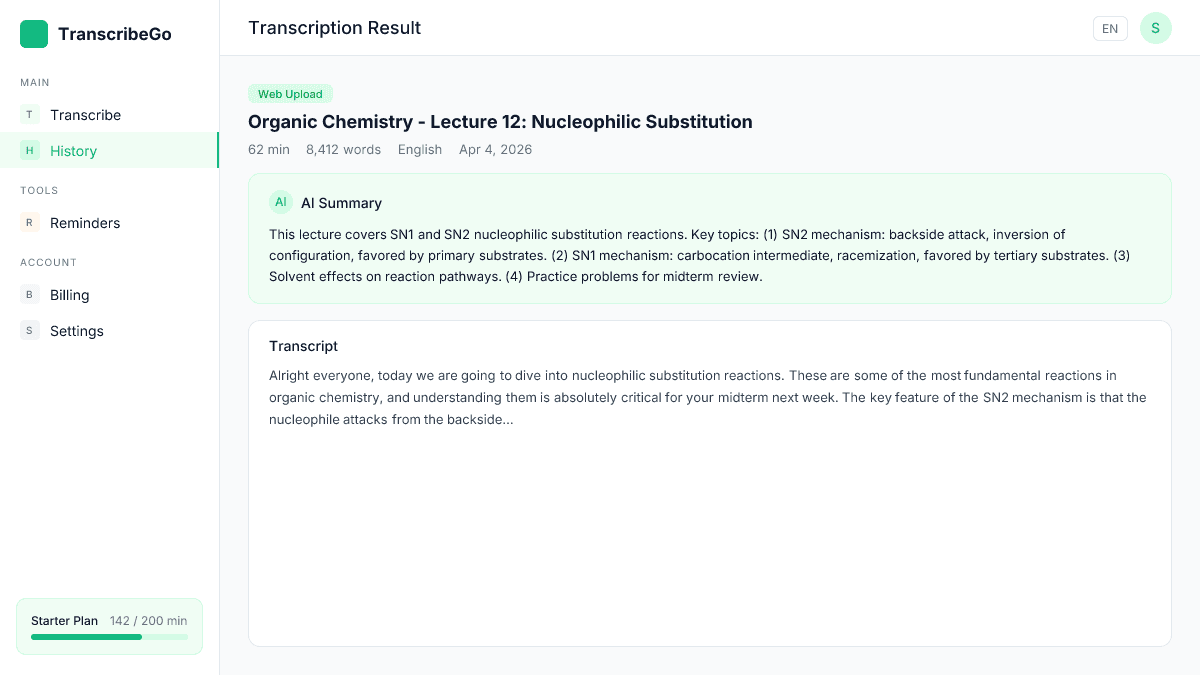
The summary is especially valuable for exam prep. Instead of re-reading a 6,000-word transcript, you get a condensed overview of what the lecture actually covered. Think of it as the cliff notes your professor never wrote.
Practical tip: Copy the summary into your note-taking app (Notion, Obsidian, Google Docs) and use it as the skeleton for your study notes. Then fill in details from the full transcript where you need more depth.
Step 4: Translate for Multilingual Study
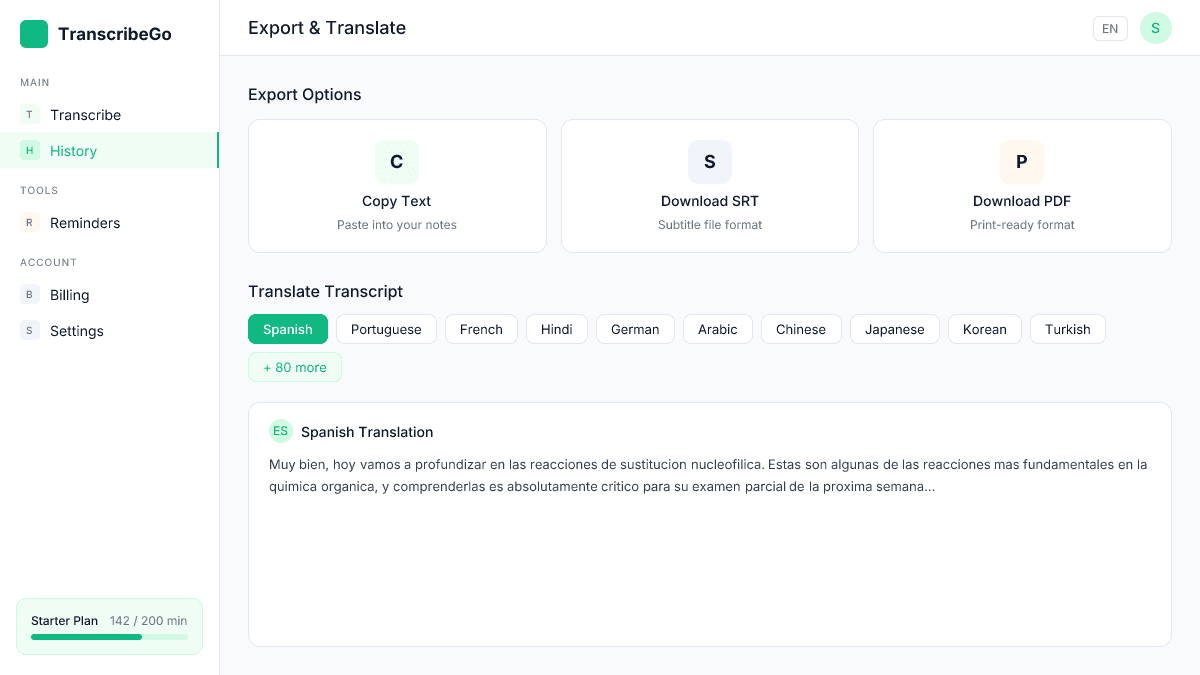
If you're an international student studying in a second language, transcription alone is a game-changer — but translation makes it even better. TranscribeGo can translate your transcript into 90+ languages with one click.
This means you can listen to a lecture in English, get the transcript, and then translate it to Spanish, Hindi, Portuguese, French, or any other language you're more comfortable studying in. Research shows that reviewing material in your native language significantly improves comprehension and retention.
Step 5: Export and Organize Your Notes
TranscribeGo lets you copy the full transcript or download it as an SRT file. For study purposes, the copy-to-clipboard option is usually what you want — paste it into whatever note system you already use.
Here's a workflow that works well for most students:
After each lecture: Upload the recording to TranscribeGo. Copy the AI summary into your notes under that day's heading. Flag any sections you didn't understand for office hours.
Before exams: Search your transcripts for specific terms or concepts. Use the summaries as a rapid review across all lectures for a course. Translate key sections if needed.
For group study: Share transcripts with classmates who missed a lecture. Having the exact text eliminates the "what did the professor say about X?" problem.
Why TranscribeGo Works Better for Students Than Alternatives
There are several transcription tools marketed to students. Here's how TranscribeGo compares:
| Feature | TranscribeGo | Otter.ai | Sonix | Manual Notes |
|---|---|---|---|---|
| Upload recorded lectures | ✅ | ✅ | ✅ | N/A |
| Transcribe from URL (YouTube, etc.) | ✅ | ❌ | ❌ | N/A |
| AI summary | ✅ | ✅ (paid) | ❌ | ❌ |
| Translation (90+ languages) | ✅ | ❌ | ✅ (53 langs) | ❌ |
| SRT subtitle export | ✅ | ❌ | ✅ | ❌ |
| Free tier | 10 min/month | 300 min/month | Trial only | Free |
| Paid plans | $3.99–$6.99/mo | $16.99/mo | $10/mo | $0 |
| WhatsApp voice notes | ✅ | ❌ | ❌ | ❌ |
A few things stand out. TranscribeGo's URL transcription is a unique advantage — you can transcribe any online lecture without downloading it first. The translation feature is critical for international students. And at $3.99–$6.99/month for 200 minutes (Starter plan), it's significantly cheaper than Otter.ai's student plan.
The free tier gives you 10 minutes per month, which is enough to test accuracy on a single lecture before committing.
Real Student Workflows: Three Use Cases
The Pre-Med Student
You're taking Organic Chemistry. The professor speaks fast, draws structures on the board, and occasionally drops critical details about reaction mechanisms. You record every lecture on your phone, upload to TranscribeGo after class, and use the AI summary to identify which reactions were covered. The full transcript becomes your searchable reference when studying specific mechanisms.
The International MBA Student
You're studying in English, but your first language is Portuguese. After each case study discussion, you transcribe the recording, then translate key sections to Portuguese for deeper understanding. For group project meetings, you transcribe the discussion so everyone has a shared record — especially helpful when team members have different accents and speaking speeds.
The Part-Time Student
You work full-time and take evening classes. You miss the occasional lecture due to work conflicts. When a classmate shares the recording, you paste the URL (if it's on YouTube or the LMS) or upload the file and have notes within minutes — instead of spending your limited free time manually reviewing a 2-hour recording.
Try TranscribeGo Free
10 free minutes. No credit card required.
Tips for Better Lecture Transcriptions
Getting the most out of AI transcription comes down to audio quality. Here are practical tips from students who've optimized their workflow:
Sit closer to the front. Sound quality drops significantly in the back rows of large halls. Even two rows forward can make a meaningful difference in transcription accuracy.
Use a lapel mic for in-person lectures. A $10 clip-on mic plugged into your phone captures the professor's voice far better than the phone's built-in mic picking up ambient noise.
Record in a lossless or high-quality format. WAV or high-bitrate MP3 (192kbps+) gives the AI cleaner audio to work with. Avoid heavily compressed formats.
Name your files consistently. Use a format like CHEM301-Lecture12-Apr04.mp3 so you can find recordings quickly when exam season hits.
Combine transcript + slides. If the professor posts slide decks, pair them with the transcript. The slides give you the visual structure; the transcript fills in everything the professor said about each slide.
Is it legal to record lectures for personal transcription?▾
In most countries and universities, recording lectures for personal study is permitted, but policies vary. Always check your university's academic policy and ask the professor. Most are fine with it as long as you don't distribute the recordings publicly.
How accurate is AI transcription for technical lectures?▾
On clear audio, AI transcription achieves 95–98% accuracy for conversational speech. Technical terminology (medical terms, chemical names, legal jargon) may require a quick manual review, but the time savings compared to manual transcription are enormous — minutes instead of hours.
Can I transcribe a lecture that's in a language other than English?▾
Yes. TranscribeGo supports transcription in dozens of languages and automatically detects the spoken language. You can also translate the result into any of 90+ supported languages, which is particularly useful for international students.
How many lectures can I transcribe on the free plan?▾
The free plan includes 10 minutes per month — enough for a short test. The Starter plan ($3.99–$6.99/month) gives you 200 minutes, which covers roughly 3–4 full lectures. The Pro plan ($12.99–$19.99/month) offers 1,000 minutes for students with heavier course loads.
Can I transcribe a lecture from a YouTube or university video link?▾
Absolutely. TranscribeGo's URL transcription feature lets you paste a link from YouTube, Vimeo, or most video platforms and get a transcript without downloading the video. This is perfect for recorded lectures, open courseware, and supplementary educational videos.