
Want to turn a video into a Twitter post without writing a single word? Paste the video URL into TranscribeGo, let the AI transcribe it, then hit the "X Post" button — you'll get a ready-to-publish tweet in seconds, with the tone and language you choose.
Content creators, journalists, students, and everyday social media users all face the same problem: you watch a great video and want to share the key ideas on Twitter/X, but summarizing 30 minutes of content into 280 characters takes time and effort. TranscribeGo's new built-in post generator solves this by reading the full transcription and crafting a compelling post for you — complete with hashtags and a link to the original video.
Content repurposing is no longer optional. 94% of marketers repurpose their content across different channels, and those who do it systematically report saving 60–80% of their content creation time compared to writing from scratch. With 91% of businesses using video as a marketing tool in 2026, the ability to quickly extract value from video content and distribute it as text on social platforms is a genuine competitive advantage.
Here's how to do it in TranscribeGo — step by step.
Step 1: Paste a Video URL and Transcribe It
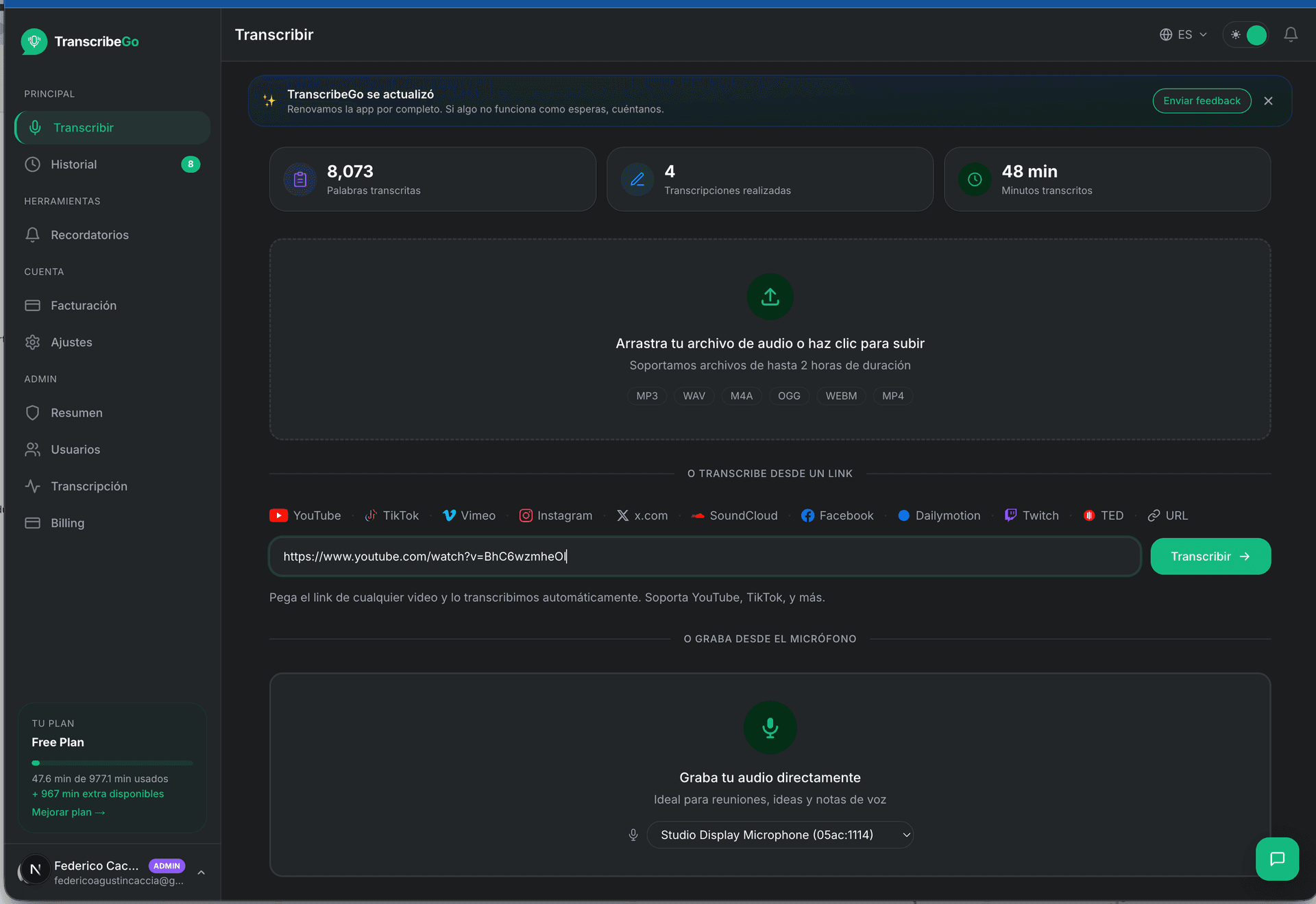
Open TranscribeGo and go to the Transcribe page. You'll see a URL input field under "Transcribe from a link." Paste any video URL — YouTube, TikTok, Vimeo, Instagram, x.com, SoundCloud, Facebook, Dailymotion, Twitch, TED, or any direct video link.
Click Transcribe and wait for the AI to process the video. Depending on the length, this takes anywhere from a few seconds to a couple of minutes. TranscribeGo automatically detects the language and produces a full text transcription plus an AI-generated summary.
Step 2: Review the Result and Find the "X Post" Button
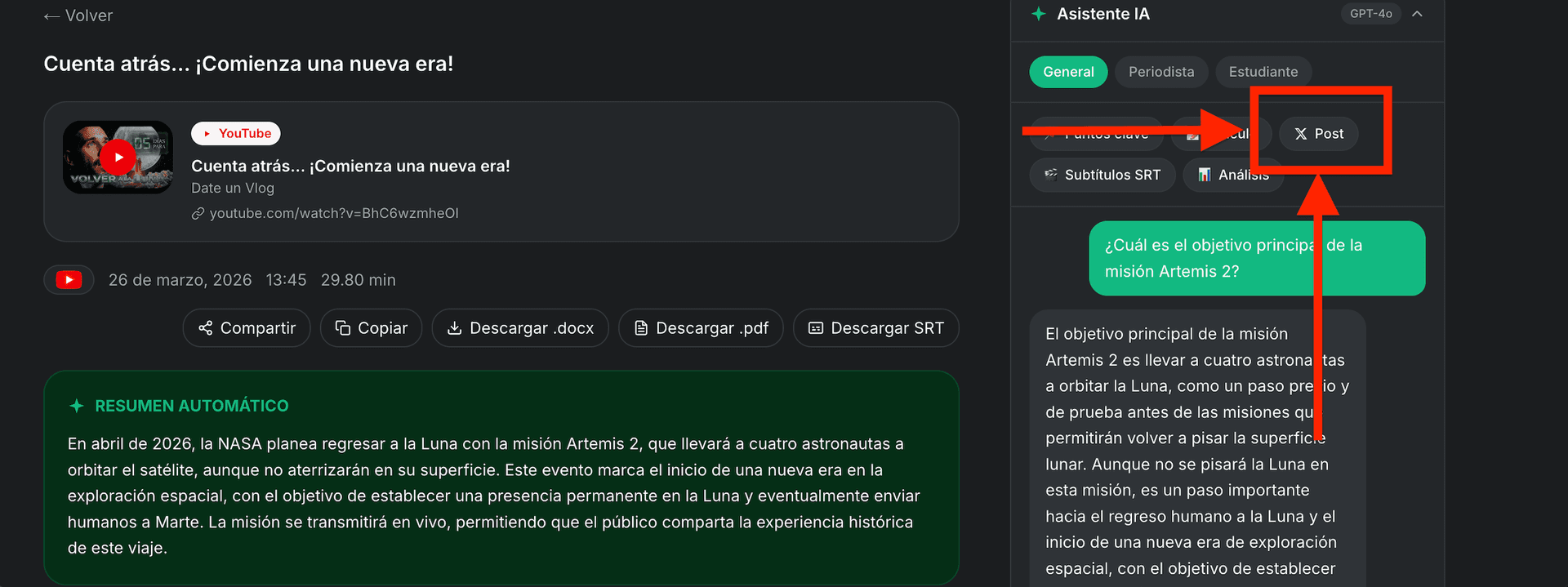
Once the transcription is ready, you'll land on the result page. Here you'll see the video title, source badge (YouTube, TikTok, etc.), duration, date, and an automatic summary of the content. On the right side, the AI Assistant panel offers different output modes — and among the action buttons you'll find the X Post option.
You can also browse the full transcription text under the "Original" tab, request a translation, or generate a full article — but for creating a Twitter post, click the X Post button to open the post generator.
Step 3: Choose Your Tone, Language, and Instructions
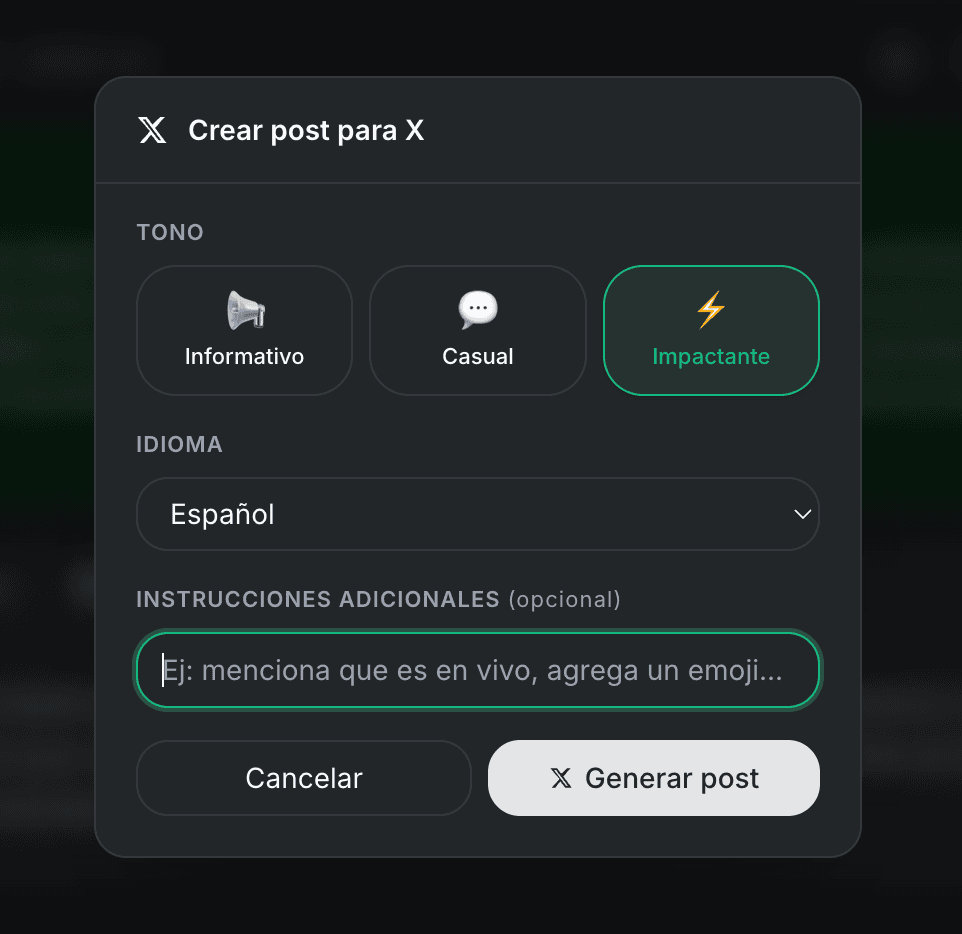
The post generator modal gives you three controls to customize your tweet:
Tone — Pick from three options:
- Informative: Neutral, fact-driven. Great for news, educational content, or professional audiences.
- Casual: Conversational and friendly. Good for everyday sharing and personal accounts.
- Impactful: Bold, attention-grabbing. Ideal for viral content, hot takes, or when you want maximum engagement.
Language — Choose which language you want the post written in. This is independent of the video's original language — you can transcribe a Spanish video and generate an English post, or vice versa.
Additional instructions (optional) — Add any specific direction. For example: "mention that it's a live event," "add an emoji," "focus on the part about space exploration," or "keep it under 200 characters."
Click Generate post and the AI creates your tweet in seconds.
Step 4: Review the Generated Post
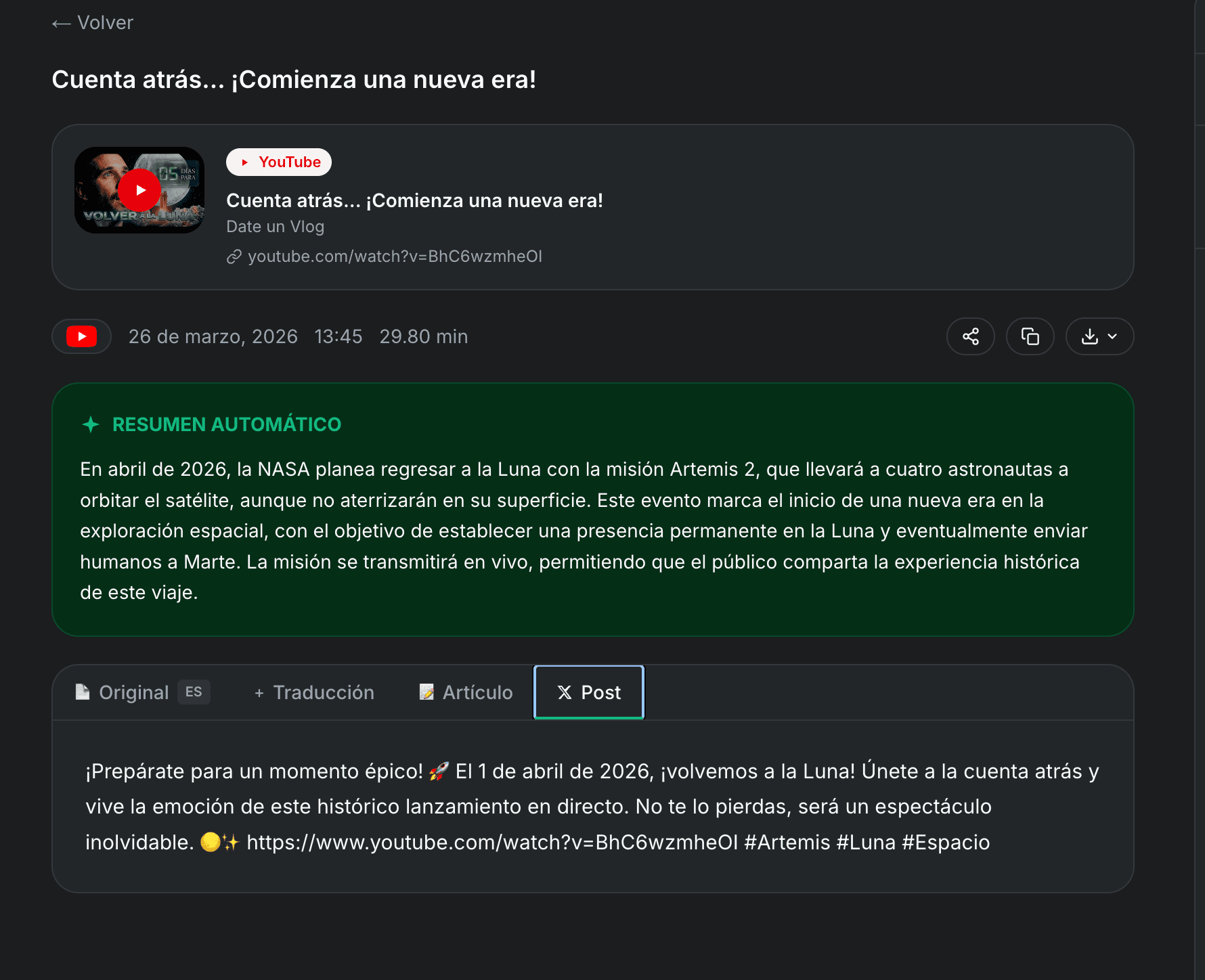
The generated post appears right on the result page under the X Post tab. It includes the video URL and relevant hashtags automatically. This is where TranscribeGo differs from generic AI writing tools: the post generator has already read the full transcription, so it captures the most compelling aspect of the video — not just a vague summary.
You can review the text, edit it directly if you want to tweak the wording, or regenerate it with different settings.
Step 5: Copy and Post to Twitter/X
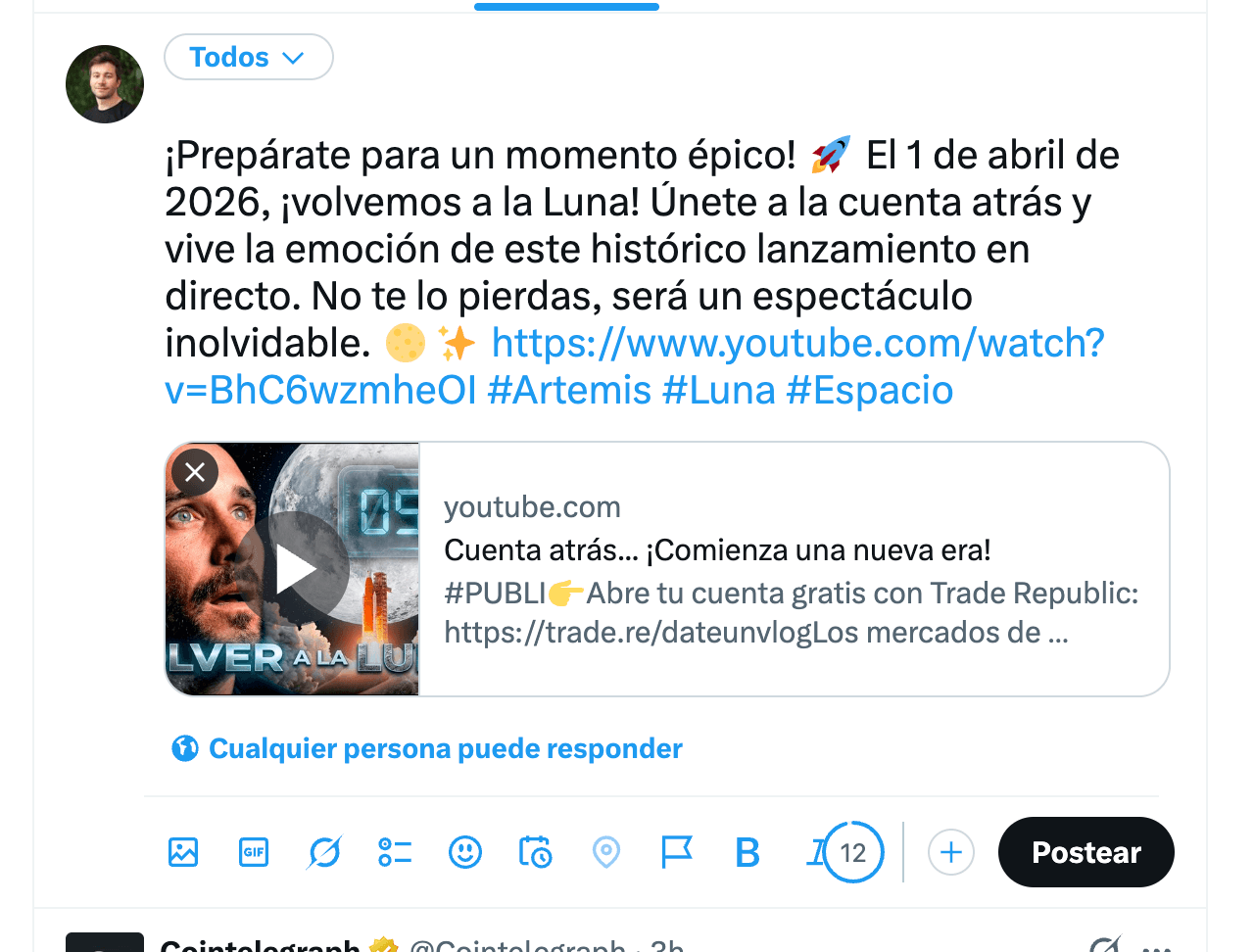
Copy the generated post and paste it into Twitter/X's compose window. The post is crafted to fit within Twitter's character limit while maximizing engagement — it highlights the key message of the video, adds context that makes people want to click, and includes relevant hashtags for discoverability.
The video URL is already embedded, so your followers can watch the original content directly from your tweet.
Why This Matters for Content Creators
If you're building an audience on Twitter/X, consistency is everything — but creating original content every day is exhausting. Video-to-post repurposing changes the equation entirely:
You don't need to write from scratch. Find an interesting video, transcribe it, generate a post. The AI does the heavy lifting of distilling a 30-minute video into a punchy 280-character take.
You stay relevant without extra effort. See a trending video in your niche? Within 60 seconds you can have a thoughtful, well-crafted post about it on your timeline. This is how creators build authority — by being the first to comment intelligently on what's happening.
You can post in any language. If your audience speaks Spanish but the video is in English, TranscribeGo handles both the transcription and the post generation in your target language. No manual translation needed.
The numbers back it up. Businesses that repurpose content into different formats see a 50% increase in engagement, and repurposed content can boost reach by up to 300% by reaching audiences across platforms with different consumption preferences. Meanwhile, 82% of content creators already repurpose their content for social media — if you're not doing it, you're falling behind.
Use Cases: Who Benefits Most?
Content creators and influencers — React to trending videos faster. Maintain a consistent posting schedule without burning out on writing. Build a multi-platform presence where your YouTube watches fuel your Twitter activity.
Journalists and researchers — Quickly summarize interviews, press conferences, or documentary clips into shareable posts. The AI captures the key facts so you can share breaking insights with your followers while linking to the source.
Students and educators — Share lecture highlights, interesting TED talks, or educational content with your study groups or professional network. Turn passive video watching into active knowledge sharing.
Everyday users — Found a video you love? Share the best parts with your followers without having to manually summarize it. It's the easiest way to start creating content and engaging on social media.
Tips for Better Twitter Posts from Videos
-
Use "Impactful" tone for engagement. If your goal is likes and retweets, the impactful tone creates posts that grab attention and encourage reactions.
-
Add specific instructions for focus. If a 30-minute video covers five topics but you only care about one, tell the AI: "focus on the part about AI regulation" — it will zero in on that section.
-
Post in the video's trending language. If a video is going viral in Spanish, posting about it in Spanish can ride the wave of that trend's audience.
-
Edit before posting. The AI gives you a great starting point, but adding your own perspective or personal take makes the post feel authentic and drives more engagement.
-
Include the video link. TranscribeGo automatically includes it, and posts with links to video content tend to get higher engagement rates than text-only posts.
Frequently Asked Questions
Can I generate posts from any video?
Yes. TranscribeGo supports URLs from YouTube, TikTok, Vimeo, Instagram, x.com, SoundCloud, Facebook, Dailymotion, Twitch, TED, and any direct video/audio link. If you can paste the URL, you can generate a post from it.
Is the post generator available on the free plan?
Yes, the X Post generator is included in all plans — including the free tier. You get 10 free transcription minutes per month, and the post generation feature works on any transcribed content.
Can I choose the language of the generated post?
Absolutely. The language selector in the modal lets you pick from 11 languages (English, Spanish, French, Portuguese, German, Italian, Hindi, Turkish, Arabic, Indonesian, and Vietnamese). The post language is independent of the video's language.
Does the generated post fit Twitter's character limit?
Yes, the AI is designed to create posts that fit within Twitter/X's 280-character limit (or the extended limit for Twitter Blue subscribers). It includes the video URL and hashtags within the character count.
Can I customize the tone of the post?
Yes. You choose between three tones — Informative, Casual, and Impactful — and you can add additional instructions to further customize the output. For example, "make it a question" or "add a call to action."
Ready to turn your next video into a Twitter post? Try TranscribeGo free — paste a URL, transcribe, and generate your first post in under a minute.
