
To transcribe a long audio file, upload it to TranscribeGo on the web, forward it through WhatsApp or Telegram, or paste a YouTube, TikTok, or Vimeo URL. The AI engine processes recordings up to four hours long, returns the full text in 90+ languages, and adds an AI summary so you can read a one-hour podcast in under a minute. No software to install, no splitting files, no waiting around — you get the complete transcript plus search, translation, SRT export, and reminders in one place.
Long recordings are everywhere now. The average podcast episode runs about 36 to 41 minutes, the most common webinar length is 60 minutes, and a typical university lecture lasts 50 to 75 minutes. Listening to all of that in real time is the slowest possible way to use it. A transcript lets you skim, search, quote, and act on the content in a fraction of the time.
The problem most people hit is that long audio breaks the tools they reach for first. Free transcribers cap out after a few minutes, browser tabs time out, and manually splitting a two-hour recording into chunks is miserable. Here's how to transcribe long audio files properly — start to finish — without any of that friction.
Why Long Audio Is Harder to Transcribe
Short voice notes are easy. Long files introduce real obstacles that trip up most tools.
File size and upload limits are the first wall. A one-hour recording can be hundreds of megabytes, and many free tools reject anything over a few minutes or a few dozen megabytes. Processing time is the second: longer audio takes longer to transcribe, and tools that run entirely in your browser tab tend to freeze or time out before they finish. The third issue is structure — a two-hour webinar with multiple speakers, Q&A, and topic shifts produces a wall of text that's hard to navigate unless the tool gives you a summary and search.
TranscribeGo is built for exactly this. It accepts files up to four hours long, processes them in the background so nothing depends on your browser staying open, and layers an AI summary and searchable archive on top of the raw transcript.
What You'll Need
A long audio or video file (MP3, M4A, OGG, WAV, MP4, MOV, and other common formats), or a link to a recording on YouTube, TikTok, or Vimeo. A web browser, or WhatsApp or Telegram on your phone. A free TranscribeGo account, which takes about thirty seconds to create. That's the whole list.
Step 1: Choose How You Want to Send Your Audio
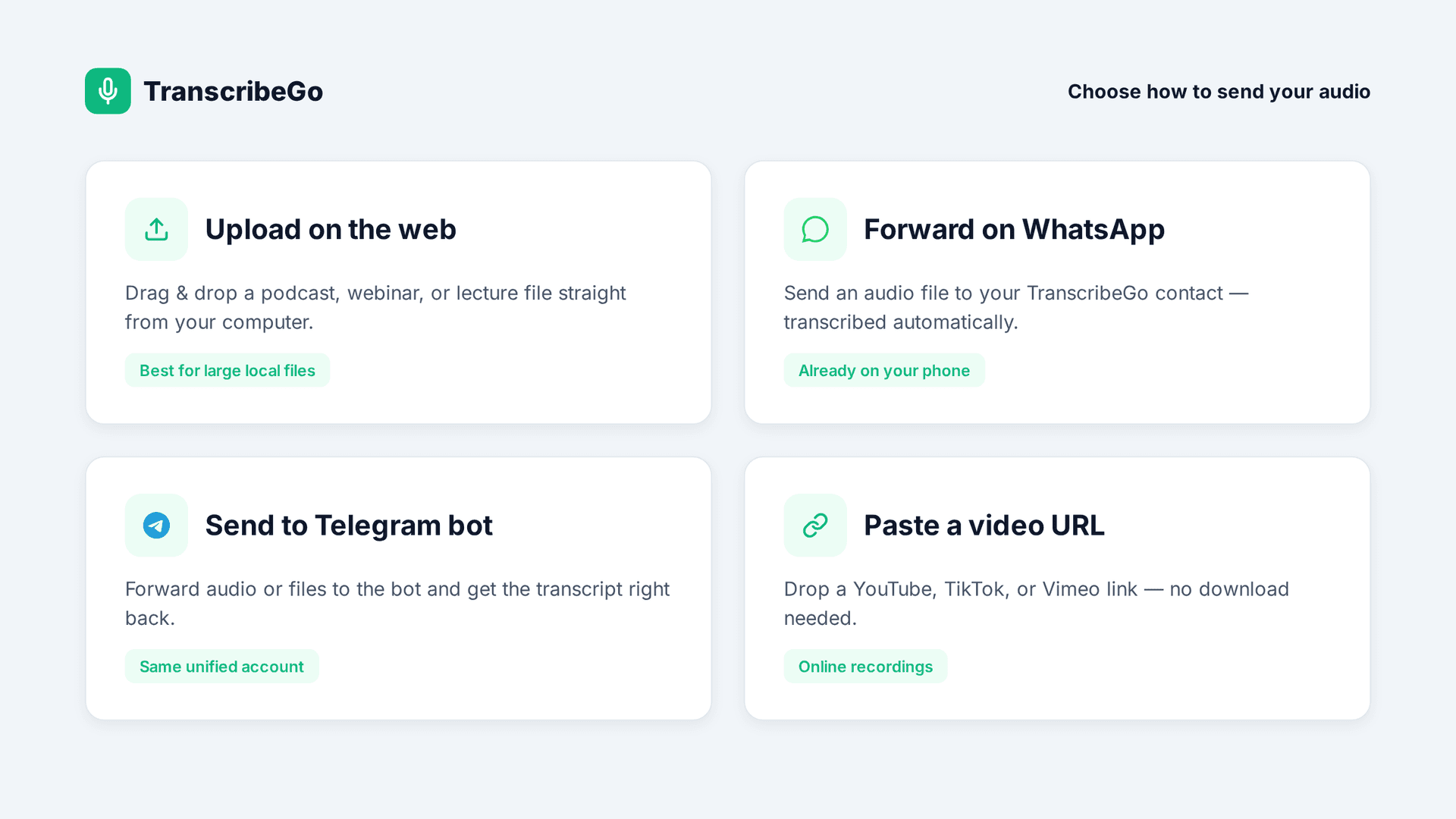
TranscribeGo gives you several ways to submit a long recording, and they all feed into the same account and the same searchable history.
The web dashboard at transcribego.com is the best choice for large local files — drag and drop a podcast episode, a recorded webinar, or a lecture recording straight from your computer. WhatsApp and Telegram are ideal when the audio is already on your phone: forward an audio file to your TranscribeGo contact or bot and it gets transcribed automatically. And if your recording lives online, you can paste a YouTube, TikTok, or Vimeo URL and TranscribeGo will transcribe it directly, no download needed.
Step 2: Upload and Let It Process in the Background
Once you upload your file or paste a URL, TranscribeGo starts working immediately. Because long recordings take longer than short voice notes, processing happens in the background — you don't have to keep a tab open or stare at a progress bar.
For recordings over a few minutes, you'll get a short confirmation that your audio is being processed, and a notification the moment your transcript is ready. If you sent the file through WhatsApp or Telegram, that notification arrives right in the same chat. If you uploaded on the web, it appears in your dashboard. This is the key difference for long audio: you can close everything, walk away, and come back to a finished transcript.
The transcription works in over 90 languages and handles accents, background noise, multiple speakers, and mixed-language audio — the messy realities of real podcasts, webinars, and lectures.
Step 3: Read the Transcript, Summary, and Search Inside It
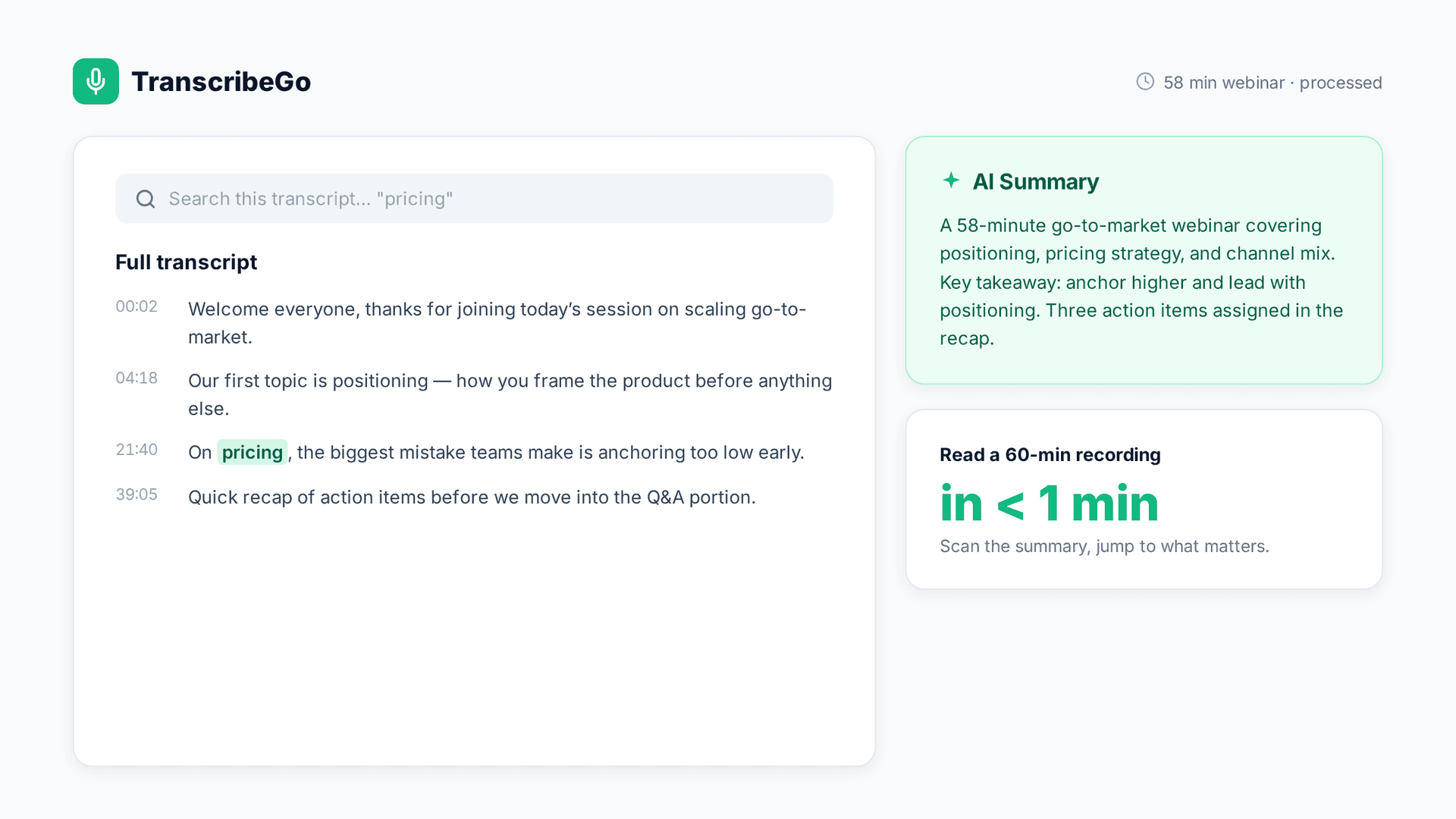
When your transcript is ready, you get more than a wall of text. Every long transcription comes with three things that make a one-hour recording actually usable.
First, the complete transcript — the full text of everything that was said. Second, an AI summary that condenses the key points, decisions, and takeaways, so you can grasp a 60-minute webinar in under a minute and decide which sections deserve a closer read. Third, your transcript lands in your searchable web dashboard, where you can search for any keyword across this recording and every other transcription you've ever done. Trying to find the moment a speaker mentioned "pricing" in a two-hour session? Search for it and jump straight there.
Step 4: Translate, Export Subtitles, and Set Reminders
A finished transcript is the starting point, not the end. From any transcription, you can put the content to work.
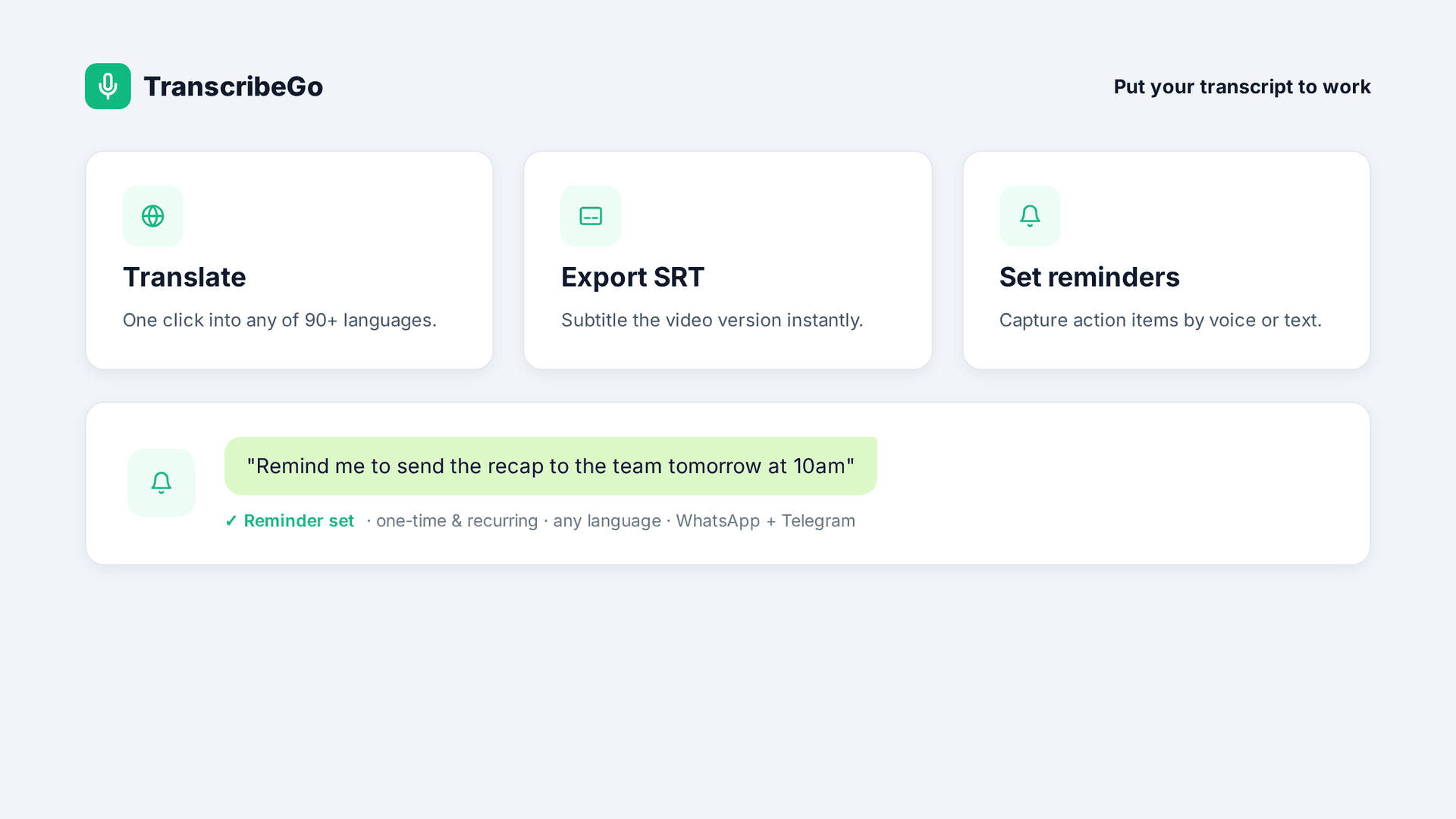
Translate the entire transcript into any language with one click — useful when your podcast guest spoke Spanish, your webinar audience is global, or a lecture was delivered in a language you're still learning. Export SRT subtitle files to caption the video version of your recording for YouTube, social media, or accessibility. And because long recordings are full of action items, you can set reminders by voice or text. After transcribing a project webinar, just message TranscribeGo something like "Remind me to send the recap to the team tomorrow at 10am" — it parses the natural language, sets the reminder, and pings you on WhatsApp or Telegram at exactly the right time. Reminders can be one-time or recurring, and they work in any language: "Recordame revisar las notas de la clase el viernes a las 6pm" works just as well.
This is what turns transcription from a passive record into something that actually moves your work forward.
It Works on WhatsApp, Telegram, and the Web
TranscribeGo is one account across three channels. Forward a recorded interview to the WhatsApp contact, send a long audio file to the Telegram bot, or upload a webinar recording on the web — everything lands in the same unified account and the same searchable history.
If you use both WhatsApp and Telegram, you can link them from the Settings page so all your transcriptions appear under one account regardless of where you sent them. For long files specifically, the web dashboard is often the most comfortable place to start an upload, while WhatsApp and Telegram are unbeatable for audio that's already on your phone. You're never locked into one path.
Tips for Transcribing Long Recordings
Lead with the summary. For anything over 30 minutes, read the AI summary first to map the recording, then dive into the full transcript only where it matters. This alone can save you most of the time you'd spend listening.
Use search as your table of contents. Instead of scrubbing through a two-hour file, search the transcript for the names, topics, or terms you care about and jump straight to them.
Capture action items as reminders immediately. Long webinars and meetings are dense with commitments. The moment you spot one in the transcript, send a reminder so it doesn't get lost.
Keep everything in one archive. Sending all your long recordings — podcasts, webinars, lectures — to the same account turns your dashboard into a searchable knowledge base you can mine weeks later.
Try TranscribeGo Free
10 free minutes. No credit card required.
Frequently Asked Questions
What's the longest audio file TranscribeGo can transcribe?▾
TranscribeGo handles audio and video files up to four hours long. That covers virtually any podcast episode, recorded webinar, lecture, interview, or meeting. Longer recordings are processed in the background, and you receive a notification the moment your transcript is ready.
How long does it take to transcribe a one-hour recording?▾
Long recordings are processed in the background rather than in real time, so you don't have to wait by your screen. You'll get a confirmation that your audio is being processed and a notification when the transcript is ready — in your WhatsApp or Telegram chat, or on your web dashboard, depending on how you sent it.
Can it handle multiple speakers and background noise?▾
Yes. Our AI engine is built for real-world recordings with multiple speakers, accents, background noise, and even mixed-language audio. Podcasts, panel webinars, and lecture recordings all transcribe with high accuracy across 90+ languages.
Do I have to split a long file into smaller pieces?▾
No. Splitting is one of the biggest pain points with other tools, and TranscribeGo removes it entirely. Upload the full recording in one go — on the web, through WhatsApp or Telegram, or as a YouTube, TikTok, or Vimeo URL — and you get a single, complete transcript back.
Can I transcribe a long YouTube video or podcast without downloading it?▾
Yes. Paste the YouTube, TikTok, or Vimeo URL into TranscribeGo and it transcribes the recording directly, no download required. This is the fastest way to turn a long online video or video podcast into searchable, translatable text.
Can I get subtitles or a summary from a long recording?▾
Both. Every long transcript comes with an AI summary that condenses the key points so you can grasp the recording in under a minute, and you can export SRT subtitle files to caption the video version for YouTube, social media, or accessibility.
