
Need to transcribe an audio file to text? Upload your file to TranscribeGo, click Transcribe, and get a full text transcript in seconds — with AI summary, timestamps, SRT subtitle export, and translation to 90+ languages. It works with MP3, WAV, M4A, OGG, FLAC, and 50+ audio formats. No software to install, and no account needed for the free tier.
AI transcription has fundamentally changed how people convert audio to text. What used to require hours of manual typing or expensive human transcription services now takes seconds. According to Sonix, the global AI transcription market reached $4.5 billion in 2024 and is projected to hit $19.2 billion by 2034 — a clear sign that automated transcription is becoming the standard for individuals and businesses alike.
This guide walks you through exactly how to transcribe any audio file using TranscribeGo, plus tips for getting the best results regardless of your audio source.
Why Transcribe Audio Files?
Before diving into the how-to, it's worth understanding why audio transcription is so useful. Spoken content — interviews, meetings, lectures, podcasts, voice memos — is hard to search, skim, or repurpose. A text transcript unlocks that content in several ways:
Searchability. You can find any word or phrase in seconds instead of scrubbing through a 60-minute recording. This alone saves hours for journalists reviewing interviews, students revisiting lectures, or researchers working with qualitative data.
Repurposing. A podcast transcript becomes a blog post. A meeting recording becomes action items. A lecture becomes study notes. Transcription is the first step in any audio-to-content workflow.
Accessibility. Providing text versions of audio content makes it accessible to deaf and hard-of-hearing audiences, and to anyone who prefers reading over listening.
SEO and discoverability. Search engines can't index audio, but they can index text. Transcribing your podcasts or videos means Google can find and rank your content — a strategy shown to boost organic traffic significantly.
How to Transcribe Audio Files with TranscribeGo
Here's the step-by-step process. The whole thing takes under a minute for most files.
Step 1: Prepare Your Audio File
TranscribeGo supports over 50 audio and video formats, including:
| Format | Extension | Common Source |
|---|---|---|
| MP3 | .mp3 | Music apps, voice recorders, downloads |
| WAV | .wav | Professional recording software |
| M4A | .m4a | iPhone voice memos, Apple ecosystem |
| OGG | .ogg | Android voice recorders, open-source tools |
| FLAC | .flac | Lossless audio archives |
| AAC | .aac | Streaming services, mobile devices |
| WEBM | .webm | Browser recordings, web apps |
| MP4 | .mp4 | Video files (audio is extracted automatically) |
If your file is in a standard audio or video format, chances are it'll work. You don't need to convert anything first.
Step 2: Upload Your File to TranscribeGo
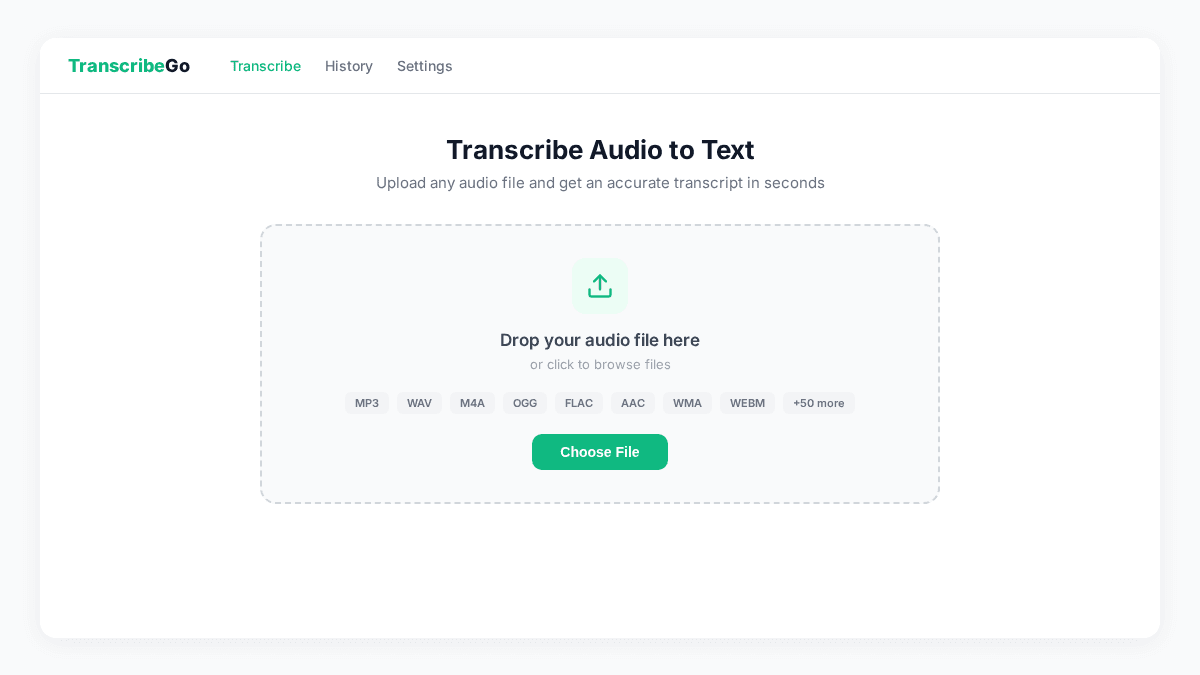
Go to TranscribeGo and navigate to the Transcribe page. You'll see a drag-and-drop upload area. Either drag your file into the zone or click to browse your device and select the file.
TranscribeGo processes the audio server-side, so you don't need a powerful computer — it works from any browser on desktop or mobile. The upload speed depends on your internet connection and file size, but a typical 30-minute MP3 file (around 30 MB) uploads in a few seconds on a standard connection.
Step 3: Click Transcribe and Wait
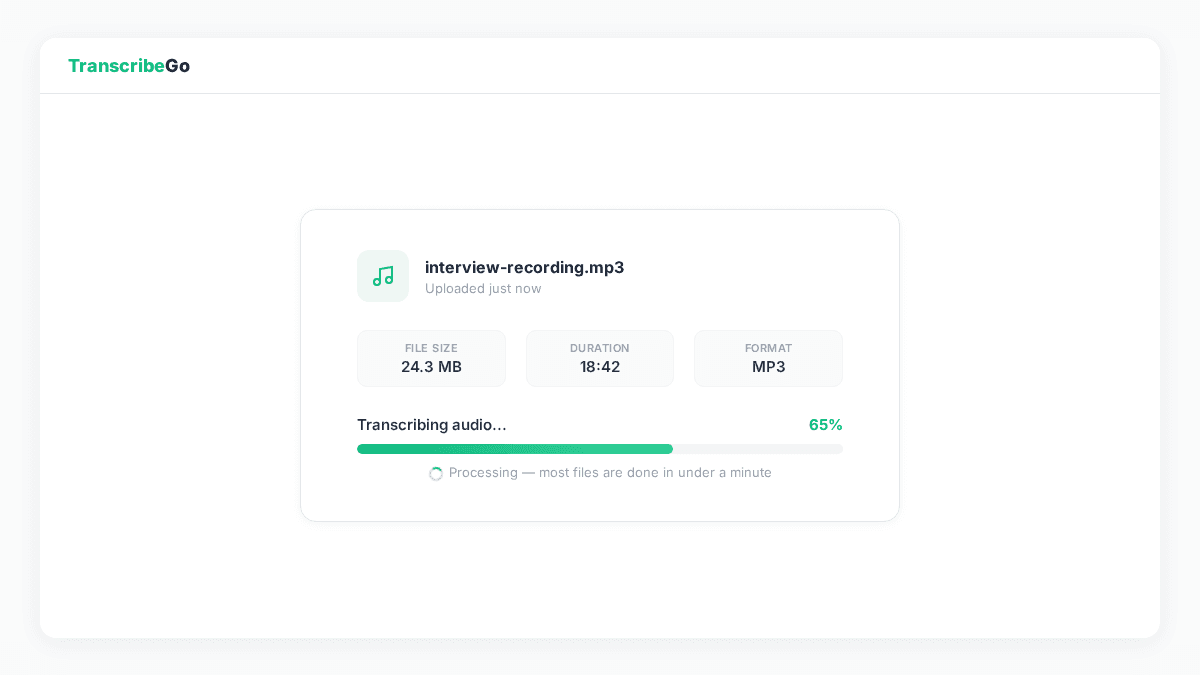
Once your file is uploaded, click the Transcribe button. TranscribeGo's AI engine processes the audio and generates the transcript. Processing time depends on the length of the audio:
| Audio Length | Approximate Processing Time |
|---|---|
| Under 5 min | 10–30 seconds |
| 5–30 min | 30 seconds – 2 minutes |
| 30–60 min | 2–5 minutes |
| 1–3 hours | 5–15 minutes |
Short files like voice memos or interview clips are ready almost instantly. Longer recordings like full podcast episodes or lecture recordings take a few minutes — still dramatically faster than the 4+ hours a human would need to transcribe a single hour of audio.
Step 4: Review Your Transcript
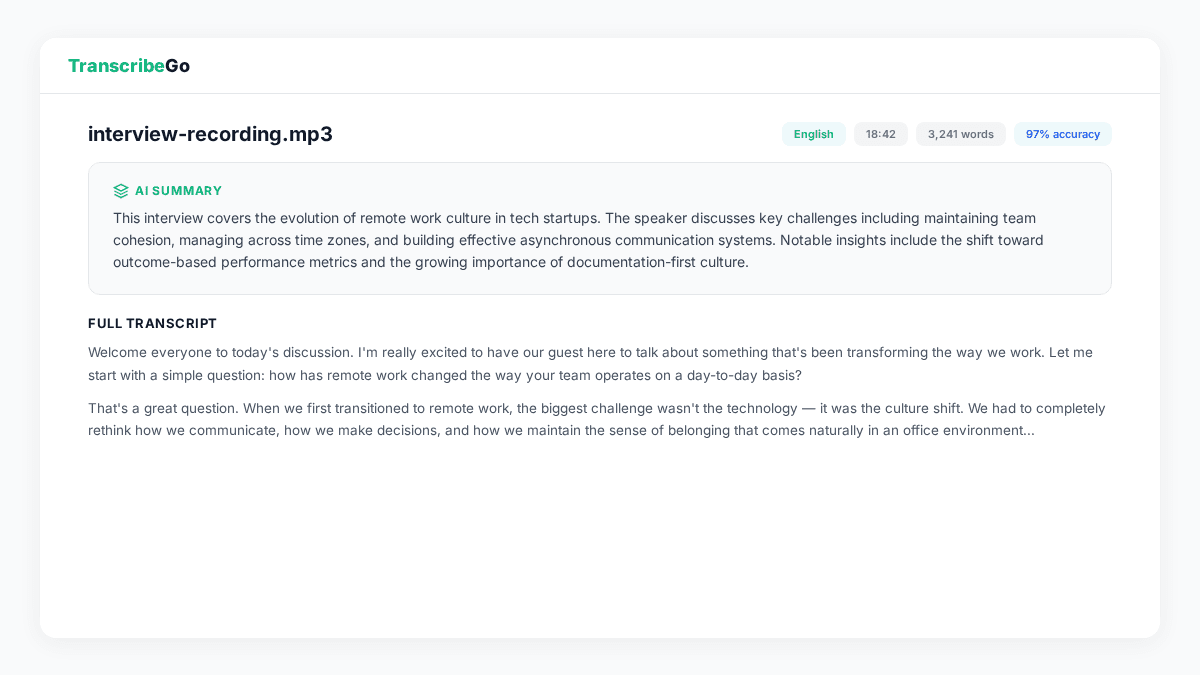
When processing is complete, you'll see the result page with:
- Full text transcript — the complete spoken content with automatic punctuation, paragraph breaks, and proper formatting
- AI summary — a concise overview of the key points covered in the audio
- Metadata — detected language, word count, audio duration, and processing time
- Timestamps — word-level timing for precise reference back to the original audio
The AI automatically detects the spoken language — no need to specify it upfront. TranscribeGo supports 90+ languages, so whether your audio is in English, Spanish, Portuguese, German, Hindi, Arabic, or Japanese, it's handled automatically.
Step 5: Export or Translate
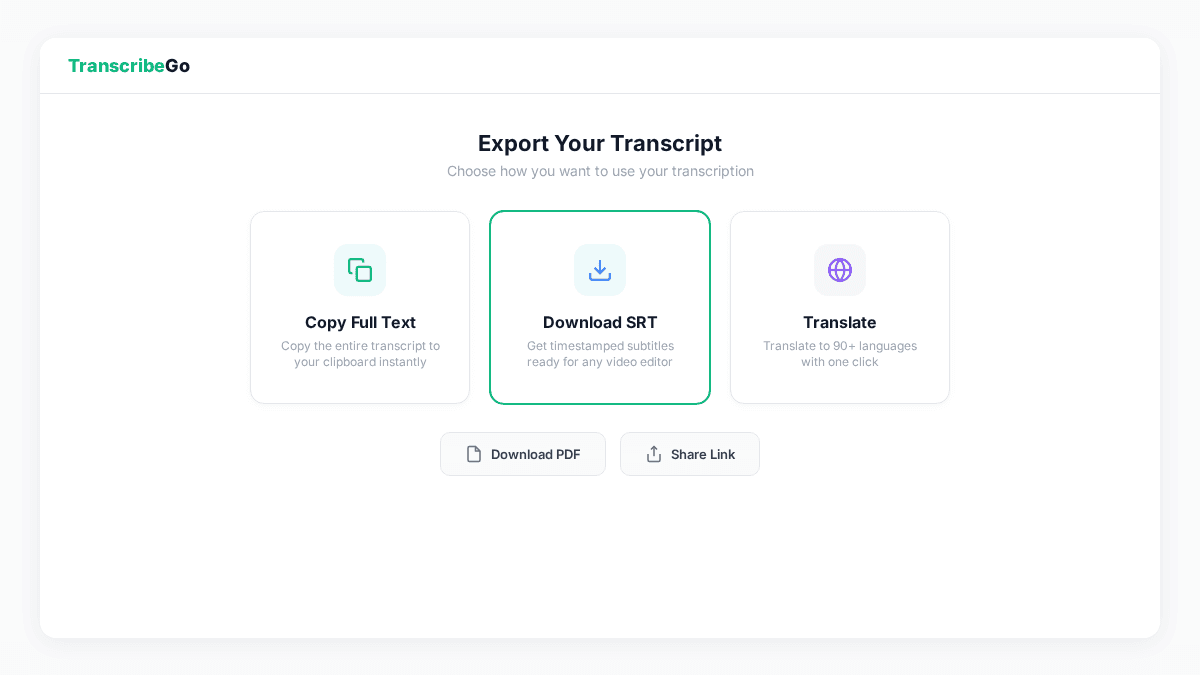
From the result page, you can:
- Copy text — copies the plain transcript to your clipboard for pasting into any document
- Download SRT — generates an SRT subtitle file with timestamps, useful for adding captions to video versions of your audio
- Download TXT — saves the full transcript as a text file
- Translate — translate the transcript to any of 90+ supported languages with one click
The translation feature is particularly useful for multilingual teams or content creators who need transcripts in languages different from the original audio. TranscribeGo handles translation server-side using AI, so you get the translated version in seconds.
Tips for Better Transcription Accuracy
AI transcription accuracy on clean audio reaches 95–98% under ideal conditions, but real-world audio isn't always ideal. Here are practical tips to get the best results:
Record in a quiet environment. Background noise is the single biggest factor affecting transcription accuracy. A quiet room with minimal echo produces dramatically better transcripts than a noisy café or outdoor setting.
Use a good microphone. Built-in laptop microphones pick up fan noise, keyboard clicks, and room reverberations. A dedicated USB microphone or a lavalier mic improves audio clarity significantly — and the transcription accuracy improves with it.
Speak clearly and at a moderate pace. AI engines handle natural speech well, but extremely fast speech, heavy mumbling, or overlapping speakers can reduce accuracy. If you're recording specifically for transcription, a steady pace helps.
Position the microphone correctly. 6–12 inches from the speaker's mouth is ideal for most microphones. Too far away and the voice gets mixed with room noise; too close and you get plosive distortion.
Avoid re-encoding audio. Every time an audio file is compressed or converted, some quality is lost. Upload the original recording file rather than a version that's been exported through multiple apps.
Audio Transcription Methods Compared
TranscribeGo isn't the only way to transcribe audio — but it's designed to be the fastest and most practical for everyday use. Here's how the main methods compare:
| Method | Speed | Accuracy | Cost | Best For |
|---|---|---|---|---|
| AI transcription (TranscribeGo) | Seconds to minutes | 95–98% | Free – $19.99/mo | Everyday transcription, quick turnaround |
| Human transcription services | 24–72 hours | 99%+ | $1.00–$3.00/min | Legal, medical, compliance-critical |
| Manual (type it yourself) | 4–6× real-time | Varies | Free (your time) | Short clips, very specific formatting |
| Built-in tools (Word, Google Docs) | Minutes | 85–92% | Free with subscription | Simple dictation, basic needs |
For most users — content creators, students, journalists, podcasters, marketers, small businesses — AI transcription hits the sweet spot of speed, accuracy, and cost. A 2025 industry survey found that 73% of transcription users rated AI transcription as meeting or exceeding their accuracy needs without any human review.
Human transcription still makes sense for legal depositions, medical records, or any context where 99.9% accuracy is non-negotiable and turnaround time isn't critical. But for everything else, AI has largely replaced the manual approach.
Common Audio Sources People Transcribe
Not sure if your use case fits? Here are the most common types of audio files people transcribe with TranscribeGo:
Podcast episodes. Convert full episodes into show notes, blog posts, or social media clips. Transcripts also make podcasts searchable and improve SEO.
Meeting recordings. Turn Zoom, Teams, or Google Meet recordings into written minutes with action items. Never miss a decision or follow-up again.
Interviews. Journalists, researchers, and HR professionals transcribe interviews for analysis, quoting, and archiving.
Lectures and classes. Students transcribe recorded lectures to create searchable study notes. Especially useful for reviewing complex topics before exams.
Voice memos. Quick ideas captured on your phone become organized text notes. M4A files from iPhone Voice Memos work directly with TranscribeGo.
Webinars and presentations. Turn recorded webinars into written guides, blog content, or training materials.
Legal and medical audio. Depositions, patient notes, and therapy sessions (with appropriate consent) get converted to documented records.
Try TranscribeGo Free
10 free minutes. No credit card required.
What audio formats does TranscribeGo support?▾
TranscribeGo supports over 50 audio and video formats, including MP3, WAV, M4A, OGG, FLAC, AAC, WEBM, MP4, MOV, AVI, and more. If your file plays in a standard media player, it'll almost certainly work. You don't need to convert your files before uploading.
How accurate is AI audio transcription?▾
On clean audio with a single speaker, AI transcription typically achieves 95–98% accuracy. Factors like background noise, multiple overlapping speakers, heavy accents, or poor recording quality can reduce accuracy. For best results, use the highest-quality version of your audio available and record in a quiet environment.
How long does it take to transcribe an audio file?▾
Most audio files under 30 minutes are transcribed in under 2 minutes. A 5-minute voice memo typically takes 10–30 seconds. Longer recordings (1–3 hours) may take 5–15 minutes. This is dramatically faster than manual transcription, which typically takes 4–6 times the length of the audio.
Is there a file size or length limit?▾
TranscribeGo's free tier includes 10 minutes of transcription per month. The Starter plan ($3.99–$6.99/mo) includes 200 minutes, and the Pro plan ($12.99–$19.99/mo) includes 1,000 minutes. There's no hard file size limit — the system handles files up to several hours long. Extra minutes can be purchased as needed without upgrading your plan.
Can I transcribe audio in languages other than English?▾
Yes. TranscribeGo supports 90+ languages and automatically detects the spoken language in your audio file. You don't need to specify the language before uploading. After transcription, you can also translate the transcript to any other supported language with a single click.
