
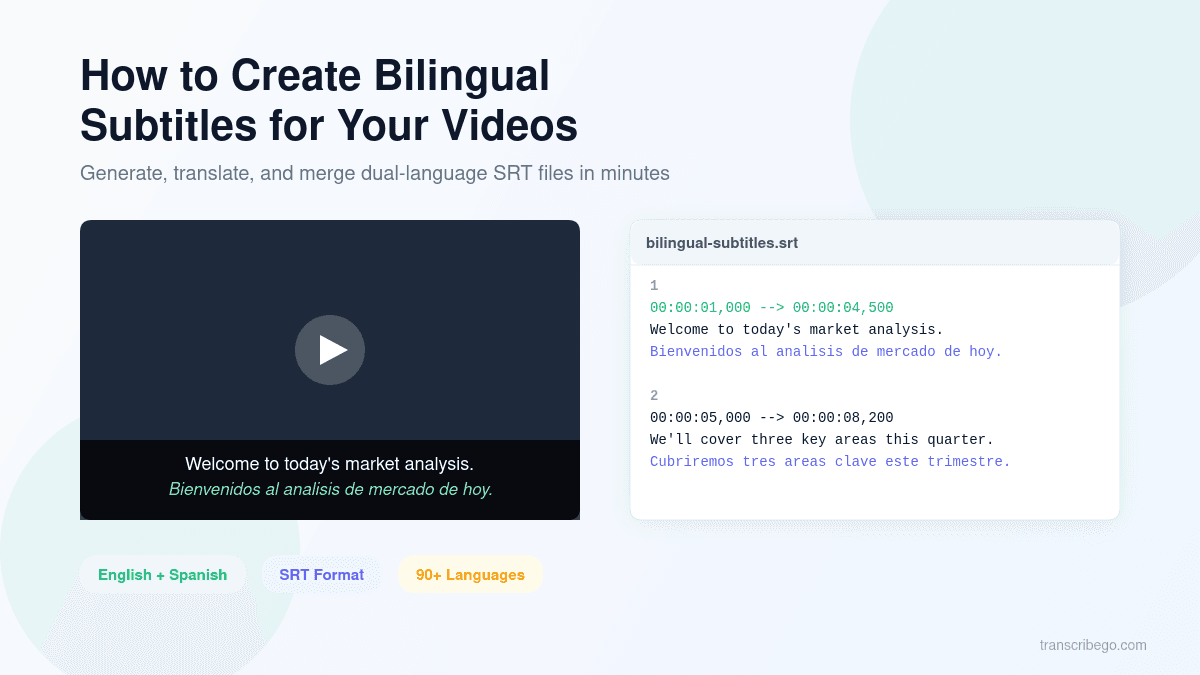
Bilingual subtitles display two languages simultaneously on screen — one line in the original language and one in the translation. You can create them by generating an SRT file from your video, translating it to a second language, and merging both into a single dual-language subtitle file. The entire process takes a few minutes with the right tools, and the result works in every major media player: VLC, Plex, YouTube uploads, and social media platforms.
The demand for multilingual video content is surging. 75% of consumers prefer content in their native language, and 40% of global Netflix users keep subtitles enabled constantly. Meanwhile, the captioning and subtitling solutions market surpassed $5.71 billion in 2023 and is growing at over 8% annually. Whether you're a content creator reaching international audiences, a language teacher building learning materials, or a business localizing training videos, bilingual subtitles are one of the fastest ways to double your video's reach.
This guide walks you through creating bilingual subtitles step by step — from transcribing your video to exporting a dual-language SRT file ready for any platform.
Why Bilingual Subtitles Matter
Bilingual subtitles serve two audiences at once. Native speakers of each language can follow along in their preferred language, and language learners get the benefit of seeing both the original and translated text simultaneously. Research from Cambridge University has shown that bilingual subtitles improve comprehension compared to single-language captions, particularly for intermediate learners.
From a content strategy perspective, bilingual subtitles let you serve multiple markets with a single video. Instead of creating separate versions for each language, one video with dual-language captions covers both audiences. Localized videos see a 40% increase in engagement compared to non-localized versions, and viewers are 80% more likely to watch through to completion when content is available in their native language.
What You'll Need
Before starting, here's what you'll need:
- A video file (MP4, MOV, AVI, MKV, WebM) or a video URL (YouTube, TikTok, Vimeo)
- A TranscribeGo account (free plan includes 10 minutes/month)
- A web browser
That's it. No desktop software to install, no command-line tools, no manual timing work.
Step 1: Transcribe Your Video and Generate the First SRT File
The foundation of any subtitle file is an accurate transcription with precise timestamps. Without good timestamps, your subtitles will be out of sync with the spoken audio — and no amount of formatting fixes that.
If you have a video file: Go to transcribego.com, sign in, and upload your video using the drag-and-drop area on the main transcription page. TranscribeGo's AI engine transcribes the audio and generates word-level timestamps automatically. The transcription works in over 90 languages with automatic language detection — you don't need to specify the language beforehand.
If you have a video URL: Paste the YouTube, TikTok, or Vimeo link directly into TranscribeGo. The platform extracts the audio and transcribes it without you needing to download anything.
If you use WhatsApp or Telegram: Forward any voice note or audio file to the TranscribeGo bot. You'll get the transcription back instantly in the chat, and it also appears in your web dashboard where you can export it.
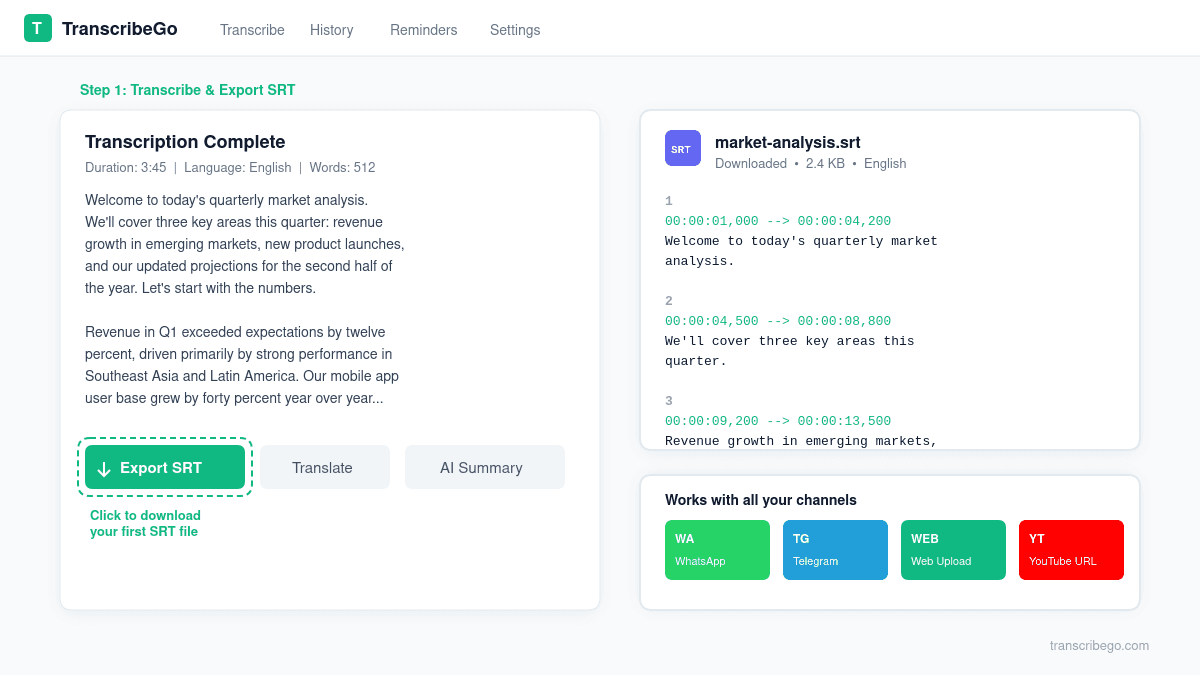
Once the transcription is complete, go to the job detail page and click Export SRT. This downloads an .srt file with perfectly timed subtitle cues in the original language. Save this file — it's your primary subtitle track.
Step 2: Translate Your Transcription to the Second Language
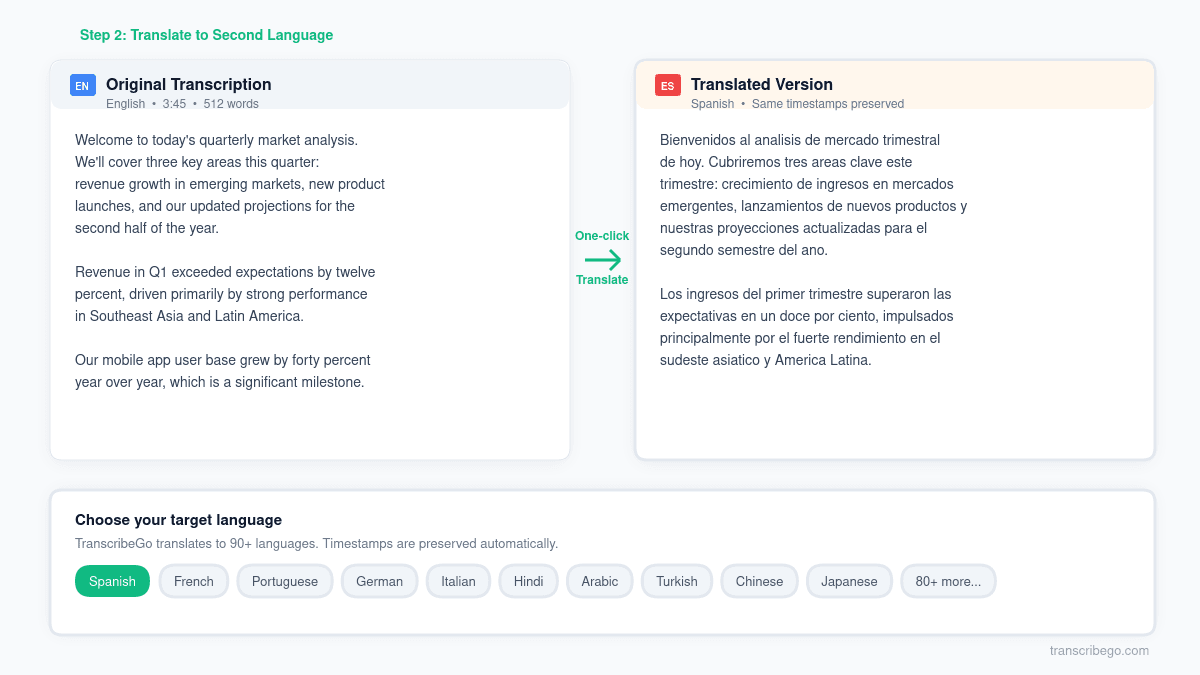
Now you need the same content in your target language, with matching timestamps. TranscribeGo makes this straightforward with its built-in one-click translation feature.
On the transcription detail page, click the Translate button and select your target language. The AI translates the entire transcription while preserving the original timestamp structure. This is critical — each translated segment stays aligned with the same time codes as the original, so when you merge the files later, both languages will be perfectly synchronized.
After translation completes, export the translated version as a second SRT file. You now have two .srt files: one in the original language (e.g., English) and one in the target language (e.g., Spanish), both sharing identical timestamps.
If you need subtitles in more than two languages, repeat this step for each additional language. TranscribeGo supports translation to any of its 90+ supported languages.
Pro tip: If you're creating bilingual subtitles for language learning purposes, keep the original language on top and the learner's language on the bottom. This encourages reading in the target language first and using the native language as a reference.
Step 3: Merge Both SRT Files into a Bilingual Subtitle File
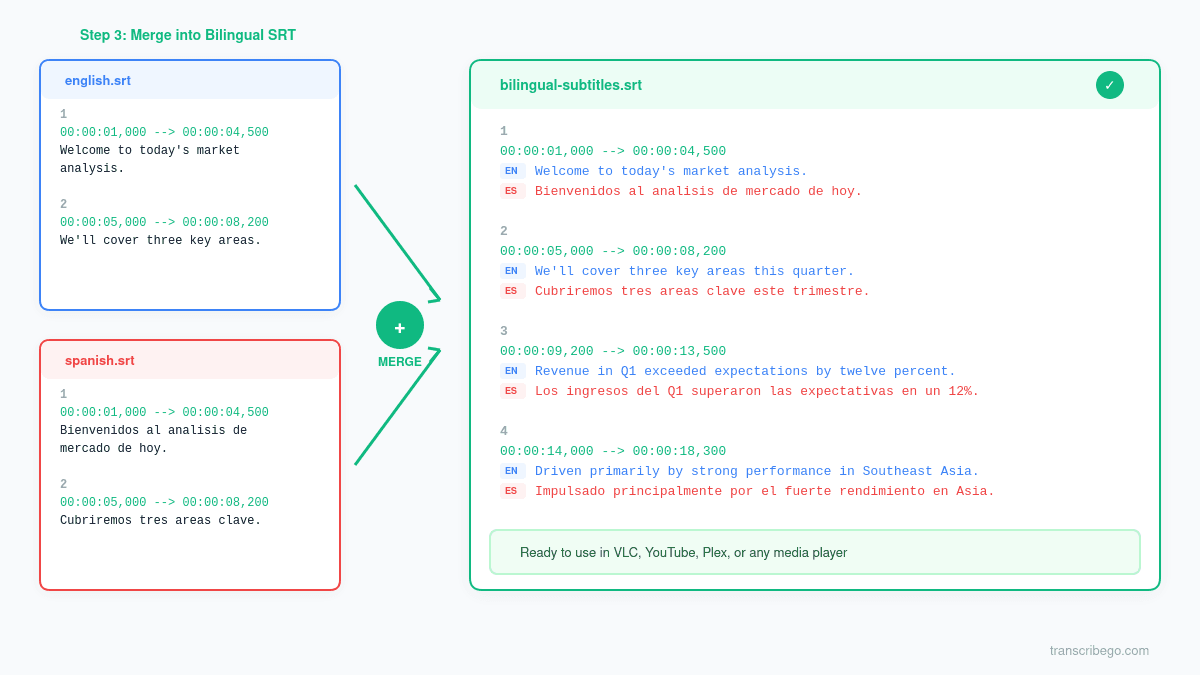
With two SRT files in hand — same timestamps, different languages — the final step is merging them into a single dual-language file.
How a bilingual SRT file works: In a standard SRT file, each subtitle cue has an index number, a timestamp, and one or two lines of text. In a bilingual SRT file, each cue simply has two text lines instead of one — the first line in your primary language and the second in your translation. Every modern media player (VLC, mpv, Plex, Infuse, YouTube) renders multi-line cues exactly as written, so both languages appear on screen simultaneously.
Here's what a bilingual SRT cue looks like:
1
00:00:01,000 --> 00:00:04,500
Welcome to today's presentation on market trends.
Bienvenidos a la presentación de hoy sobre tendencias de mercado.

2
00:00:05,000 --> 00:00:08,200
We'll cover three key areas this quarter.
Cubriremos tres áreas clave este trimestre.
To merge your files, you can use a free online tool like SubtitleToolbox or Subconverter. Upload your primary language SRT and your secondary language SRT, select "Match by cue index" (since both files share the same timestamps from TranscribeGo), and download the merged result.
After merging, open the file in a text editor and scan a few cues to confirm both languages appear under each timestamp. Each individual line should stay under about 42 characters for comfortable reading on standard displays.
Tips for Better Bilingual Subtitles
Keep lines short. With two languages per cue, screen space is limited. Aim for 42 characters or fewer per line. If a sentence runs long, split it across two cues in both languages.
Use consistent formatting. Always put the same language on top. If your primary audience speaks English, keep English as the first line and the translation as the second. Consistency helps viewers know where to look.
Consider font styling for clarity. When hardcoding subtitles into video (burning them in), use italics or a slightly smaller font for the secondary language. This creates a visual hierarchy that makes reading easier. When using SRT files with a media player, the player handles styling automatically.
Test on mobile. Bilingual subtitles take up more vertical space. Preview your video on a phone screen to ensure both lines are readable without covering too much of the video frame. On mobile, shorter subtitle lines become even more important.
Set reminders for your subtitle workflow. If you produce bilingual content regularly, TranscribeGo's reminder feature can keep you on schedule. Send a message like "Remind me to subtitle the weekly video every Monday at 9am" on WhatsApp or Telegram, and you'll get a notification at the right time. It's one of those small productivity features that keeps content workflows moving.
Common Use Cases for Bilingual Subtitles
Language learning content. Teachers and course creators use bilingual subtitles to help students connect spoken words with their translations in real time. The original language provides immersion while the translation provides comprehension support.
International business videos. Training videos, product demos, and corporate communications often need to reach offices in multiple countries. Bilingual subtitles let you serve two major language groups without doubling your video production budget.
Social media content. Creators targeting bilingual communities (English/Spanish in the US, French/Arabic in North Africa, Hindi/English in India) use dual-language captions to maximize engagement across their full audience.
Film and documentary distribution. Independent filmmakers distribute festival screeners and streaming uploads with bilingual subtitles to serve both the original audience and the target market's audience simultaneously.
Accessibility and inclusion. For events, conferences, and webinars with multilingual attendees, bilingual subtitles ensure everyone can follow the content regardless of which of the two primary languages they speak.
Try TranscribeGo Free
10 free minutes. No credit card required.
Frequently Asked Questions
What is a bilingual subtitle file?▾
A bilingual subtitle file is a standard SRT (or VTT) file where each subtitle cue contains two lines of text — one in each language. Both languages share the same timestamps, so they appear on screen simultaneously. Every major media player supports this format natively, including VLC, Plex, YouTube, and most social media platforms.
Can I create bilingual subtitles for free?▾
Yes. TranscribeGo's free plan gives you 10 minutes of transcription per month, which includes SRT export and one-click translation. For the merging step, free online tools like SubtitleToolbox and Subconverter handle the file combination at no cost. You can create bilingual subtitles for short videos entirely for free.
Do bilingual subtitles work on YouTube?▾
Yes. When you upload an SRT file with two text lines per cue to YouTube as closed captions, YouTube displays both languages. You can also upload separate subtitle tracks for each language, which lets viewers choose their preferred language from the CC menu. The bilingual (merged) approach shows both simultaneously.
How many languages can I combine in one subtitle file?▾
Technically, you can add three or more languages to a single SRT file by adding more text lines per cue, but this isn't practical — three lines of text cover too much of the video frame. For more than two languages, the best approach is to create separate subtitle tracks and let the viewer choose. TranscribeGo supports translation into 90+ languages, so you can create as many separate SRT files as you need.
What's the best format for bilingual subtitles — SRT or VTT?▾
Both work. SRT is the most widely supported format and works with virtually every media player and platform. VTT (WebVTT) offers additional styling options like font color and positioning, which can help visually distinguish the two languages. For maximum compatibility, start with SRT. TranscribeGo exports in SRT format by default.
Can I create bilingual subtitles from a WhatsApp or Telegram voice note?▾
Yes. Forward any voice note or audio file to the TranscribeGo bot on WhatsApp or Telegram. The transcription appears in the chat and in your web dashboard at transcribego.com, where you can translate it and export SRT files in any language. From there, merge the two SRT files into a bilingual subtitle file using the process described in this guide.
